
How to Manage Contacts and Client Relationships in PawnCRM
Your contacts are the heart of your business. PawnCRM’s contact management system gives you a centralized place to store, organize, and manage every client relationship — from first contact to long-term customer.
This guide walks you through the complete contact management workflow in PawnCRM: viewing your contact list, adding new contacts, exploring detailed profiles, tracking notes and meetings, and analyzing your contact data.
What You’ll Need
- A PawnCRM account with contacts permission
- At least one contact in your system (or you can add one during this guide)
- Optionally: tags and contact lists already set up for better organization
Step 1: View Your Contact List
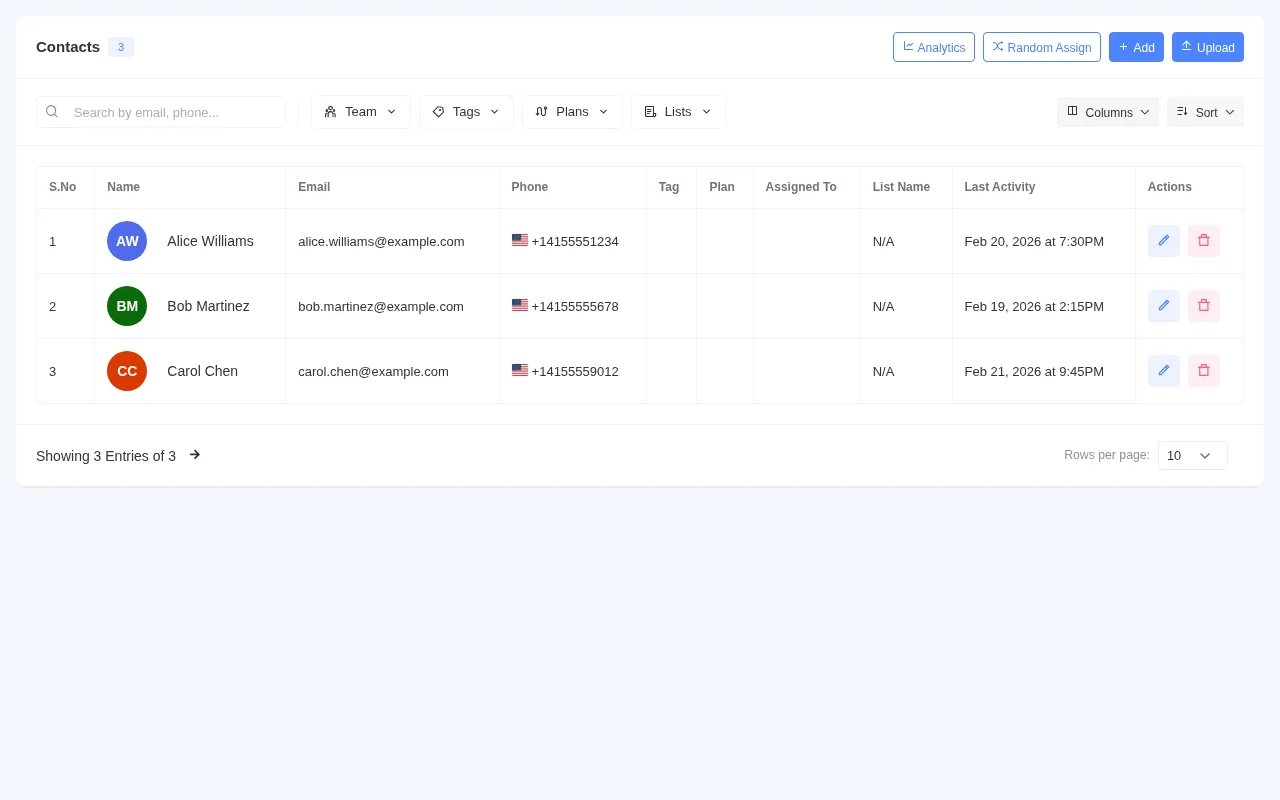

Navigate to the Contacts page from the sidebar. You’ll see all your contacts displayed in a clean, organized table with columns for name, email, phone number, tags, assigned list, and last activity date.
Use the search bar at the top to quickly find any contact by name, email, or phone. You can also apply filters to narrow down by tag, list, or date range. The bulk action checkboxes let you select multiple contacts for batch operations like tagging, assigning to lists, or deleting.
Step 2: Add a New Contact
Click the “Add Contact” button in the top-right corner of the contacts page. A modal form opens where you can enter all the contact’s details:
- First Name and Last Name — the contact’s full name
- Email Address — for email campaigns and direct communication
- Phone Number — with international format support for SMS and VoIP calls
- Contact List — assign the contact to an existing list for segmentation
- Tags — add one or more tags to categorize the contact (e.g., “Hot Lead”, “VIP Client”)
Click “Save” and your new contact instantly appears at the top of the contact list. There’s no need to refresh the page — PawnCRM updates the view in real time.
Step 3: Explore the Contact Profile
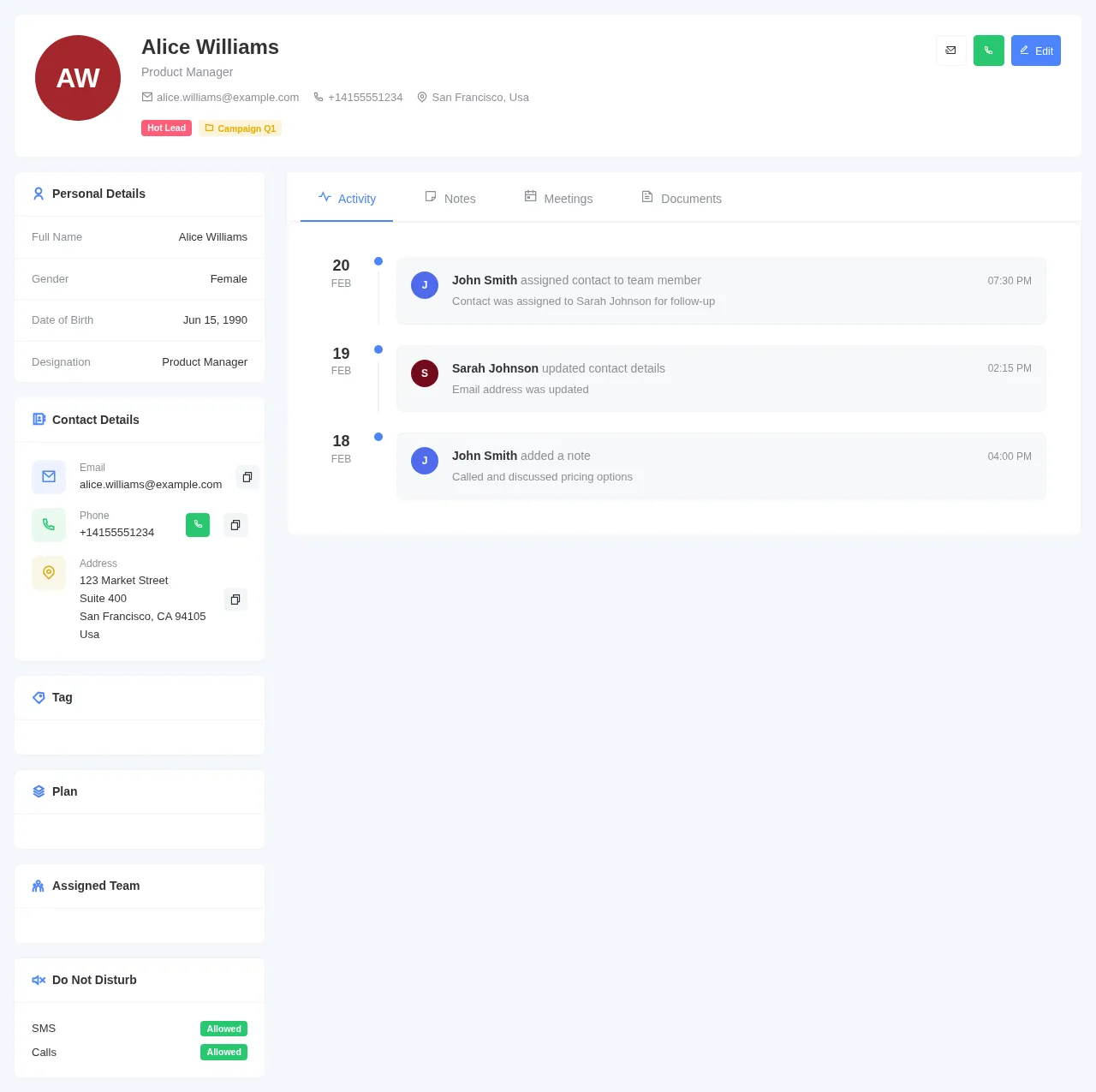
Click on any contact’s name to open their full profile view. The profile page is divided into two sections:
- Left sidebar — Shows the contact’s basic information: name, email, phone, assigned list, tags, and creation date. You can edit any field directly from here.
- Right panel — Contains tabs for Activity, Notes, and Meetings, giving you a complete history of every interaction with this contact.
The profile view gives your team a 360-degree view of every client relationship, so anyone can pick up where a colleague left off.
Step 4: Track Notes on Contacts
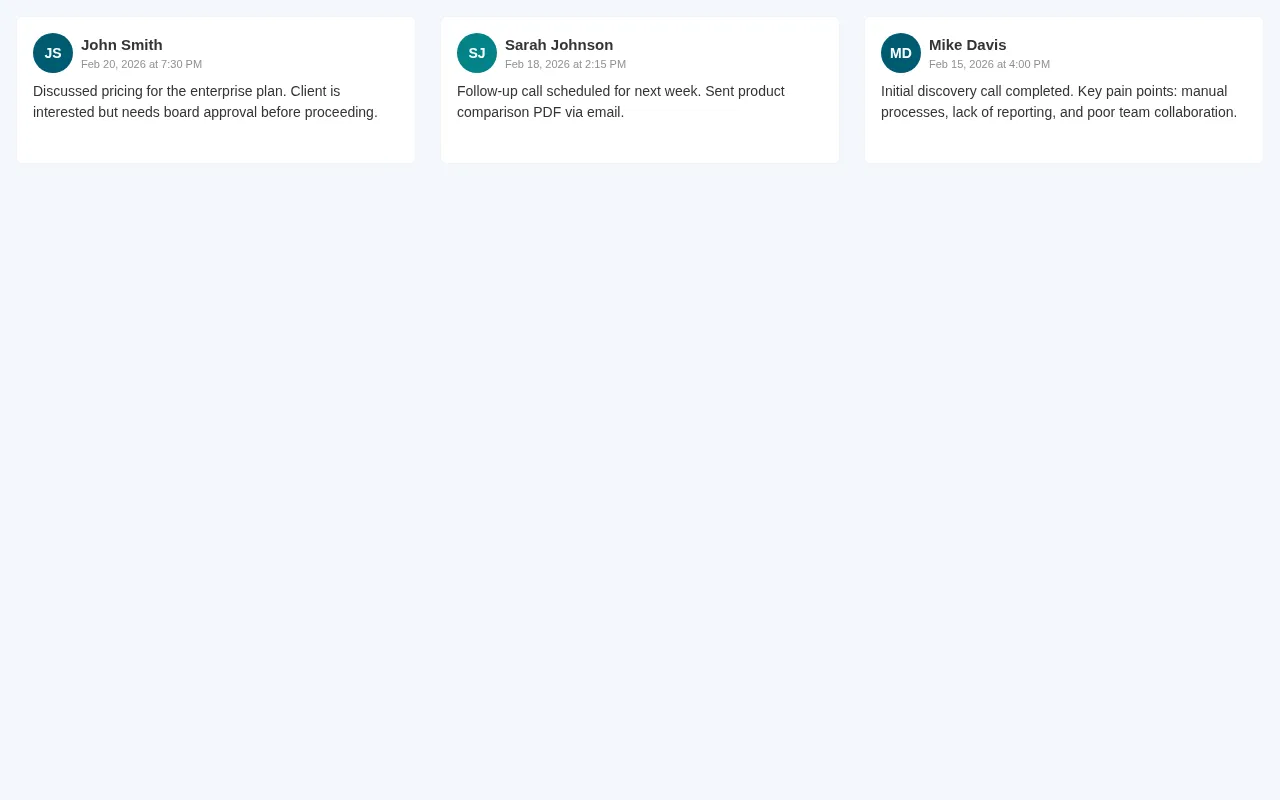
Switch to the Notes tab in the contact profile to see all notes associated with this contact. Notes help your team share important context — meeting summaries, follow-up reminders, or special client preferences.
Each note shows the author, timestamp, and full content. You can pin important notes to the top so critical information is always visible. Adding a new note is as simple as typing in the text area and clicking save.
Step 5: Manage Contact Meetings
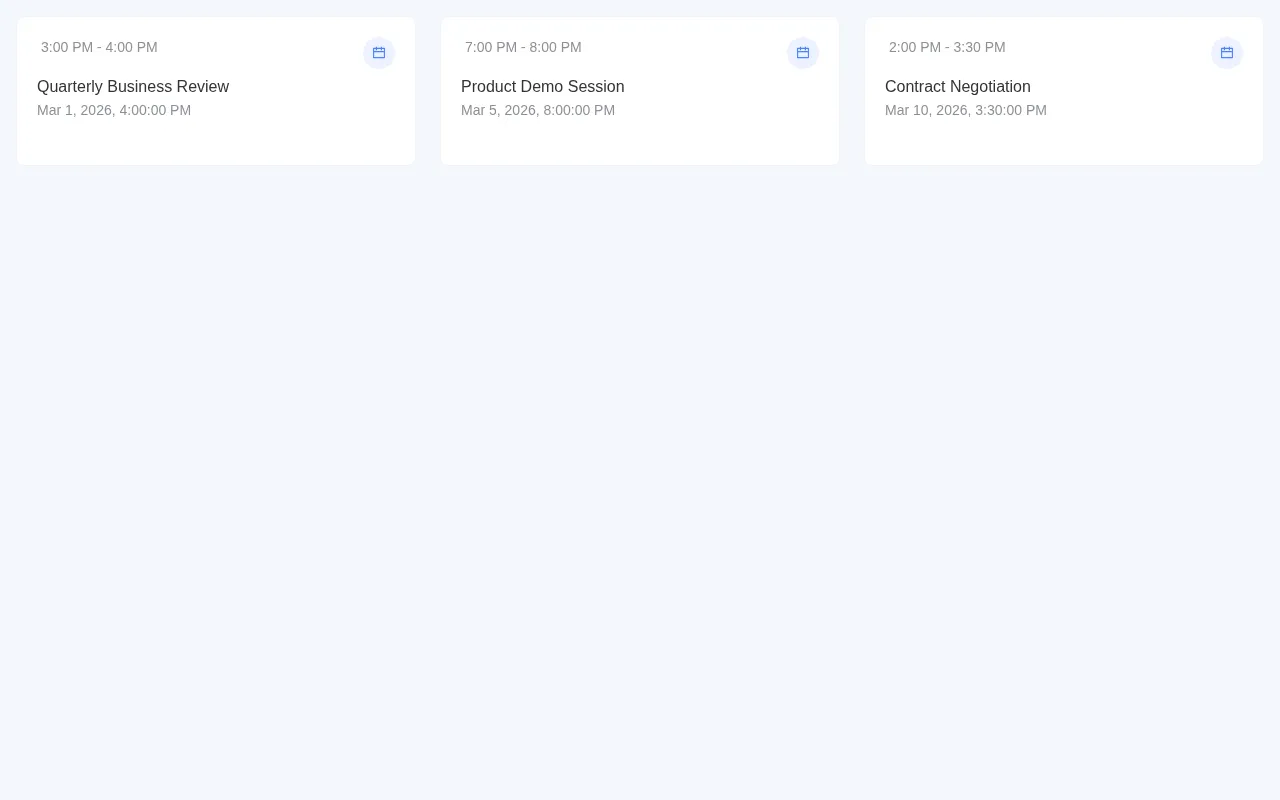
The Meetings tab shows all meetings scheduled with this contact — both upcoming and past. Each meeting card displays the meeting title, date, time, and status.
From here you can:
- View meeting details — click any meeting to see the full agenda and participants
- Track meeting history — see all past meetings at a glance for context before your next call
- Schedule new meetings — create meetings directly from the contact profile
Step 6: Analyze Your Contact Data
PawnCRM includes a contact analytics panel that gives you insights into your contact database. Access it from the contacts page to see:
- Total contacts — your complete database count
- Contacts by plan — breakdown of contacts across different subscription plans
- Growth trends — how your contact database is growing over time
- Key insights — actionable recommendations based on your contact data
These analytics help you understand your customer base at a glance and make data-driven decisions about your outreach strategy.
See It in Action
Watch the complete contact management flow — from browsing your contact list, adding a new contact, exploring the full profile with notes and meetings, to reviewing your analytics:
Tips for Smooth Contact Management
- Use tags consistently — Create a tagging strategy (e.g., by lead source, priority, or industry) and stick to it across your team.
- Keep contact lists organized — Group contacts into lists for campaigns, segments, or teams to make bulk operations easier.
- Add notes after every interaction — A quick note after a call or meeting saves time later and keeps the whole team informed.
- Review analytics regularly — Check your contact analytics weekly to spot trends and optimize your outreach.
- Use search and filters — Don’t scroll through hundreds of contacts. The search bar and filter options get you to the right contact instantly.
What Can You Do Next?
- Import contacts in bulk — Use the CSV upload feature to add thousands of contacts at once
- Run email campaigns — Select contacts by tag or list and send targeted email campaigns
- Send SMS campaigns — Reach contacts via SMS using your Twilio integration
- Schedule meetings — Book meetings directly from contact profiles with calendar integration
- Assign tasks — Create follow-up tasks linked to specific contacts
Ready to take control of your client relationships? Sign in to PawnCRM and start managing your contacts today.
Related Articles
Continue exploring PawnCRM with these guides:
