
How to Use Chat and SMS Messaging in PawnCRM
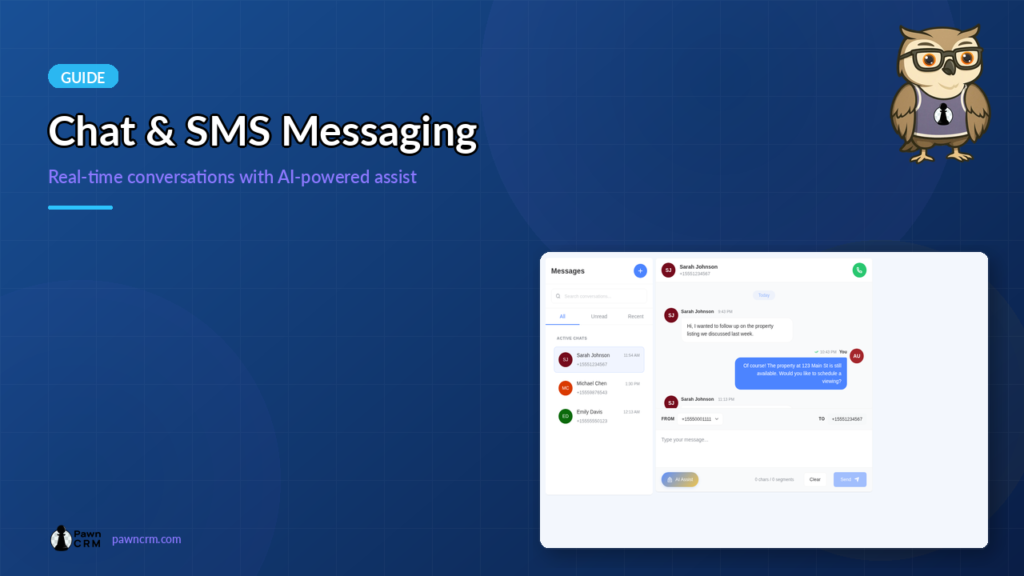
Staying connected with your clients is everything. PawnCRM’s built-in chat and messaging system lets you send and receive SMS messages directly from your CRM — no switching between apps, no lost conversations. Every message is linked to a contact, so your team always has full context.
This guide walks you through the complete messaging workflow: viewing your conversations, sending messages, using AI to draft replies, and accessing contact details, notes, tasks, and meetings right from the chat sidebar.
What You’ll Need
- A PawnCRM account with conversations permission
- A Twilio integration connected with at least one phone number
- At least one contact with a phone number in your system
Step 1: View Your Conversations
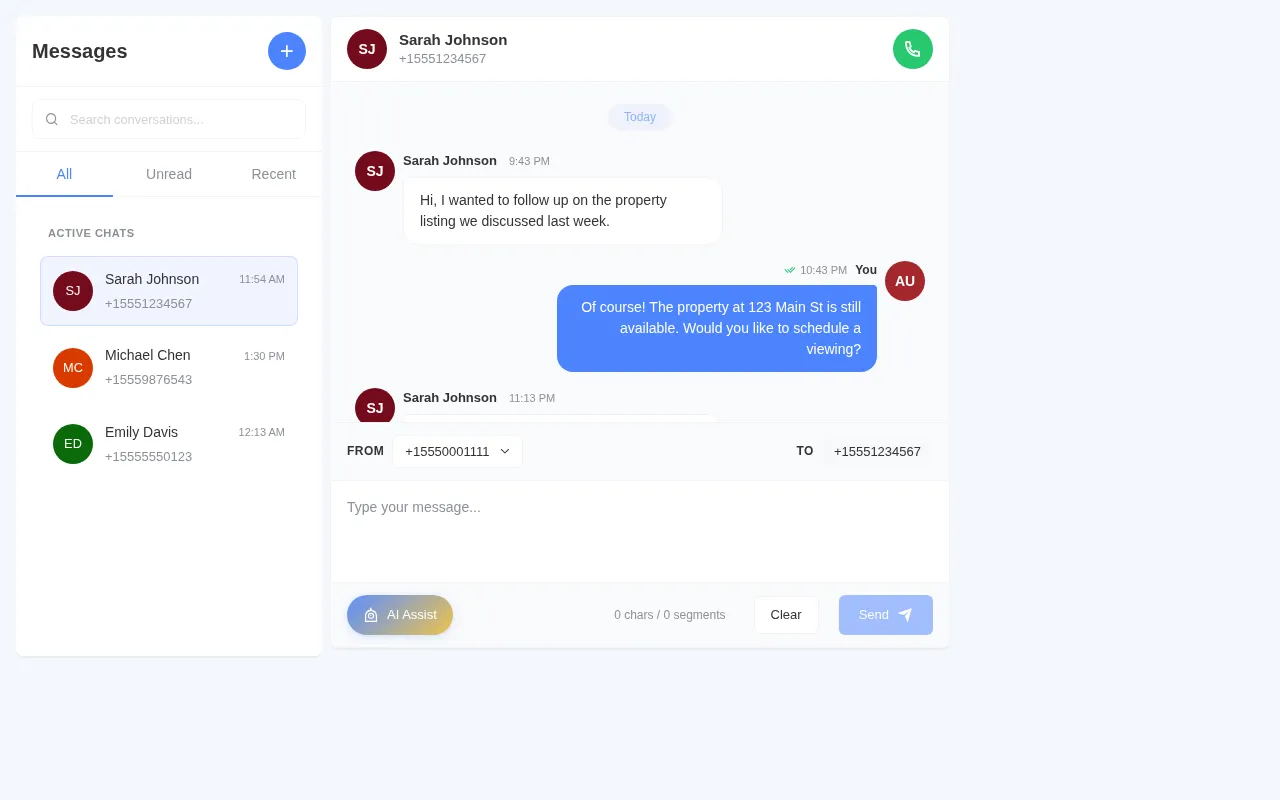

Navigate to the Messages page from the sidebar. The interface is split into three columns:
- Left panel — Your conversation list, showing all contacts you’ve messaged. Each item shows the contact name, phone number, last message time, and an unread badge if there are new messages.
- Center panel — The active conversation with full message history.
- Right panel — A contact sidebar with profile details, notes, tasks, and calendar.
Use the search bar to find any conversation by contact name. Switch between All, Unread, and Recent tabs to filter your conversations.
Step 2: Open a Conversation
Click on any contact in the conversation list to open their message history. The chat area shows all messages organized by date, with clear visual separation between:
- Inbound messages (left-aligned) — Messages received from the contact, shown with their avatar
- Outbound messages (right-aligned) — Messages you’ve sent, with delivery status indicators
The chat header displays the contact’s name, phone number, and a call button to initiate a VoIP call directly from the conversation. Below the messages, you’ll see the message composer with From/To phone numbers, a text area, and the toolbar.
Step 3: Compose and Send a Message
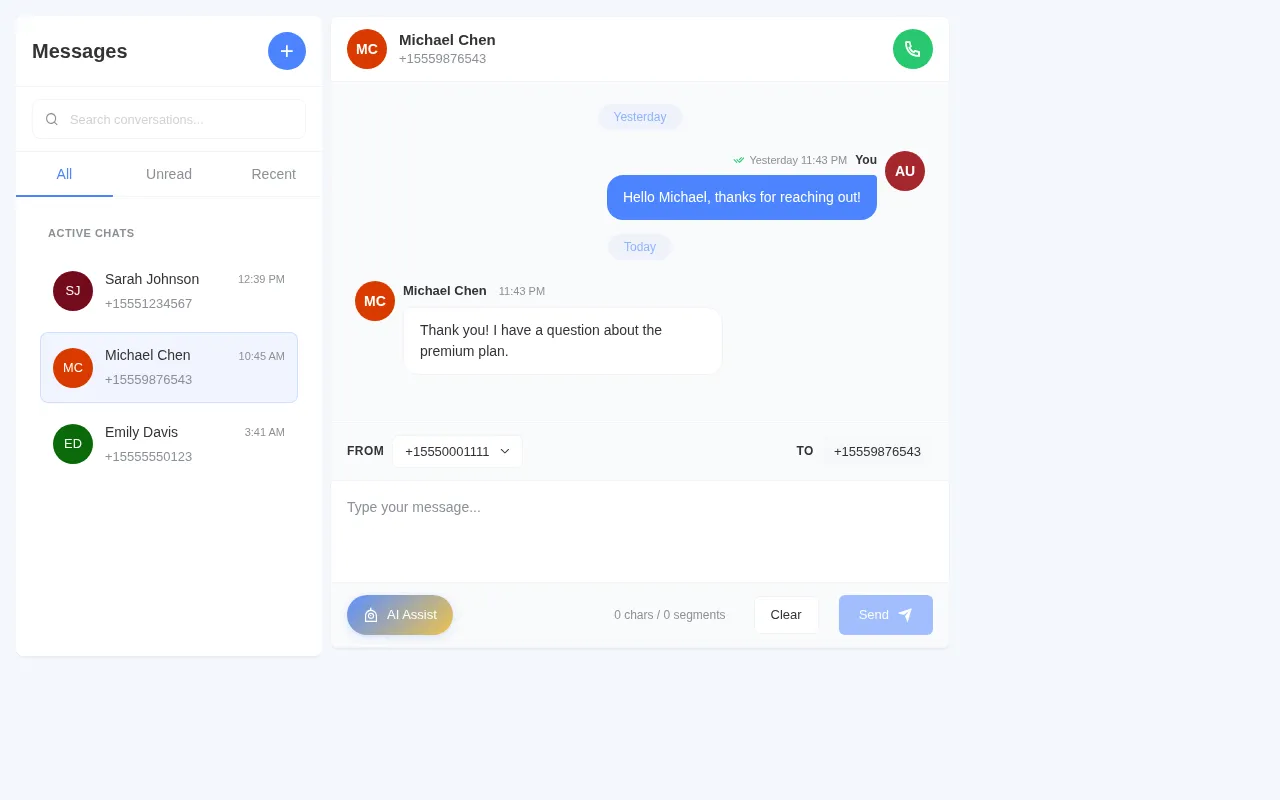
The message composer at the bottom of the chat gives you everything you need to craft the perfect message:
- From/To numbers — The From dropdown lets you select which Twilio number to send from. The To field shows the contact’s phone number.
- Message text area — Type your message here. The character and segment counter updates in real time so you know exactly how long your SMS will be.
- AI Assist button — Opens the AI Assistant to generate smart replies (more on this below).
- Send button — Sends your message instantly. It lights up when your message is ready to go.
After sending, the message appears immediately in the conversation with a delivery status checkmark. No page refresh needed — everything updates in real time via WebSocket.
Step 4: Use AI Assist for Smart Replies
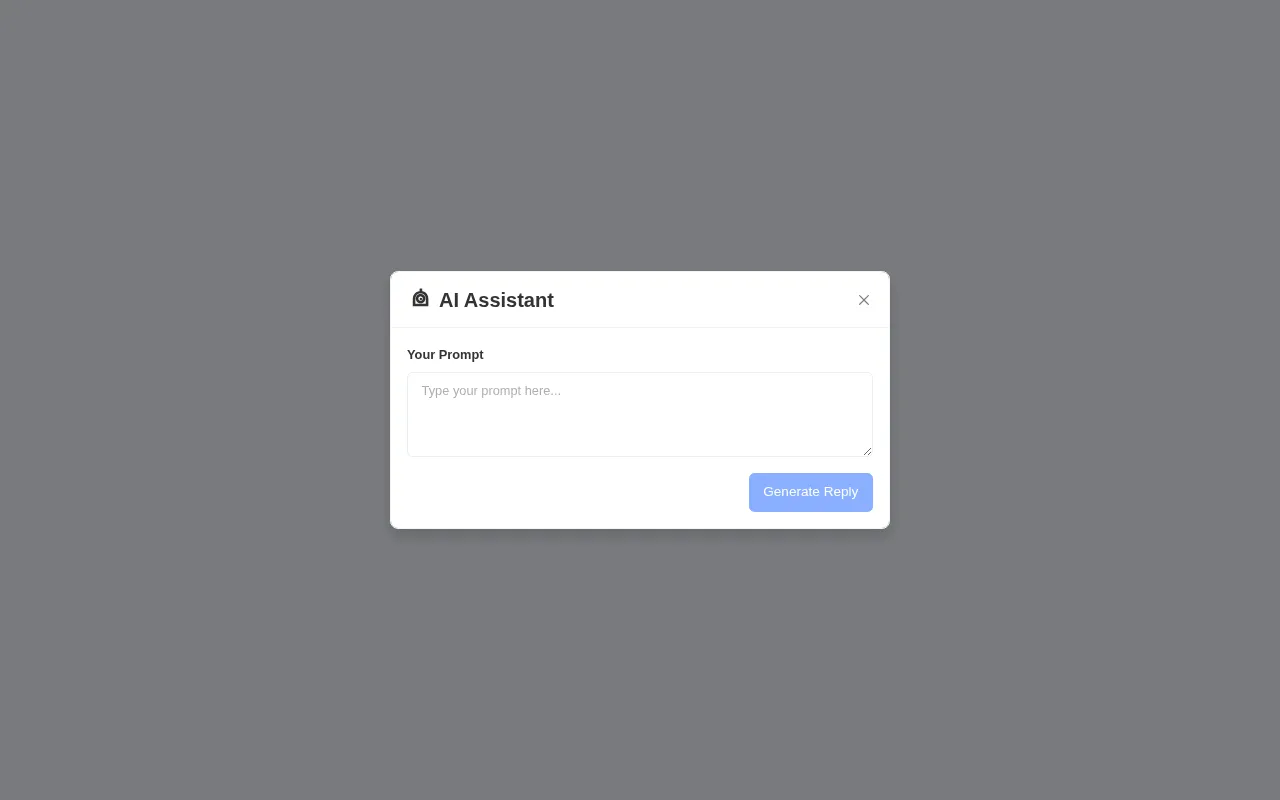
Need help drafting a response? Click the AI Assist button in the toolbar to open the AI Assistant. Here’s how it works:
- Type a prompt describing what you want to say — for example, “Write a friendly follow-up about the Thursday call”
- Click Generate Reply and the AI creates a professional message for you
- Review the generated text and use it as-is or edit it before sending
The AI Assistant helps you respond faster and more consistently, especially for common follow-ups, meeting confirmations, and client outreach messages.
Step 5: Access Contact Details from the Sidebar
The right sidebar gives you instant access to everything about the contact you’re chatting with — without leaving the conversation. Toggle between four sections using the icon buttons:
- Profile (person icon) — Contact information, email, phone, assigned team members, tags, plan, and Do Not Disturb settings. Click the external link icon to open their full contact profile.
- Calendar (calendar icon) — Upcoming meetings with this contact, showing date, time, and video provider (Zoom, Google Meet).
- Tasks (checkbox icon) — Tasks linked to this contact with status indicators (Ready, In Progress, Done) and assigned team members.
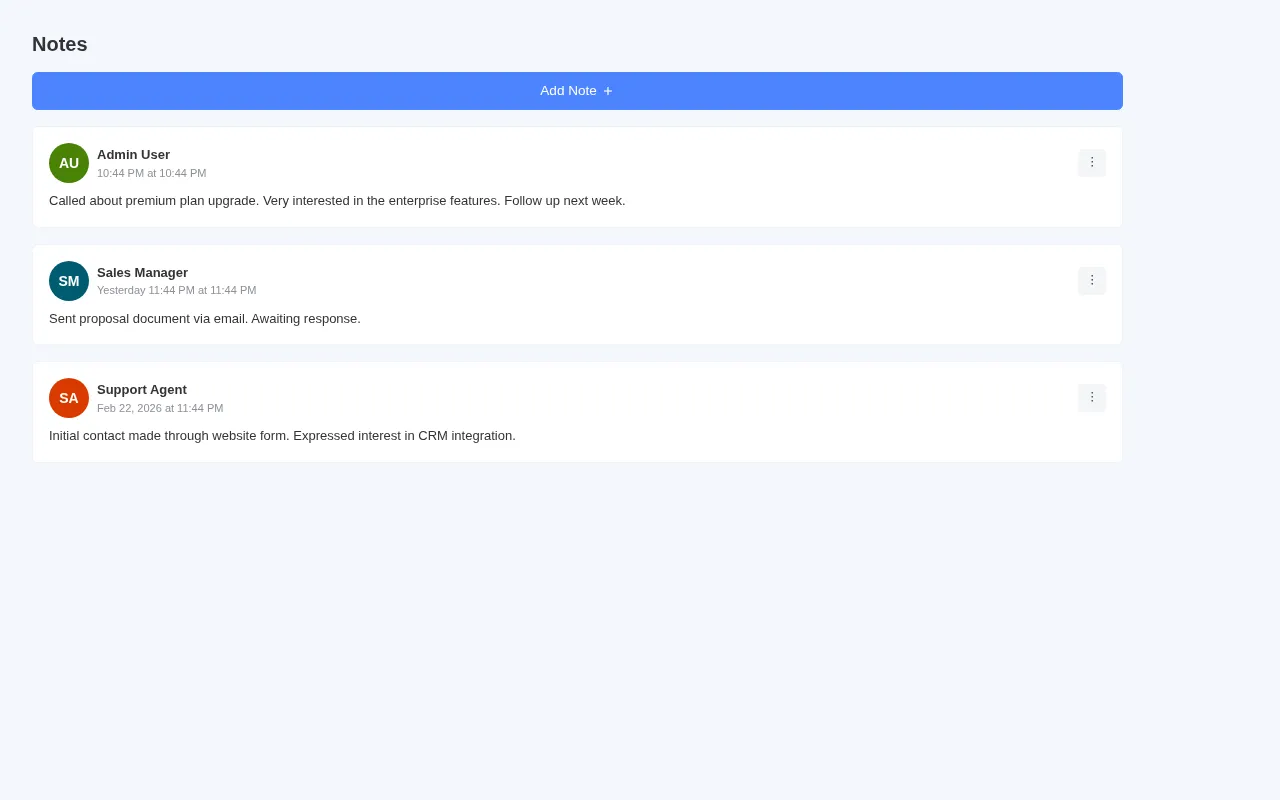
- Notes (document icon) — Notes from your team about this contact, with author, timestamp, and full text. Pin important notes to the top.
Step 6: Stay Updated with Real-Time Notifications
PawnCRM uses WebSocket connections to deliver incoming messages in real time. When a contact replies:
- The message appears instantly in the active conversation
- The conversation list updates with an unread badge
- An audio notification plays so you never miss a message
- The message is automatically linked to the correct contact profile
This means your team can respond to clients in seconds, not minutes — giving you a significant edge in customer responsiveness.
See It in Action
Watch the complete chat and messaging flow — from browsing conversations, reading messages, using AI Assist to draft a reply, sending a message, and exploring the contact sidebar with profile, calendar, tasks, and notes:
Tips for Effective Messaging
- Use AI Assist for consistency — Let the AI draft your initial response, then personalize it. This ensures professional tone while saving time.
- Check the sidebar before responding — Glance at recent notes and upcoming meetings to make your reply more informed and contextual.
- Watch your segment count — SMS messages over 160 characters split into multiple segments, which costs more. The counter helps you stay efficient.
- Use tags and lists for quick filtering — Organize contacts so you can prioritize which conversations to respond to first.
- Add notes after important conversations — A quick note after a key discussion helps your whole team stay aligned.
What Can You Do Next?
- Set up Twilio integration — Connect your Twilio account to start sending and receiving SMS
- Run SMS campaigns — Send bulk messages to segmented contact lists
- Manage your contacts — Organize and track all your client relationships
- Import contacts in bulk — Upload thousands of contacts via CSV
- Schedule meetings — Book calls directly from the chat sidebar calendar
Ready to streamline your client communication? Sign in to PawnCRM and start messaging your contacts today.
Related Articles
Continue exploring PawnCRM with these guides:
