
How to Use Calendar and Appointment Scheduling in PawnCRM
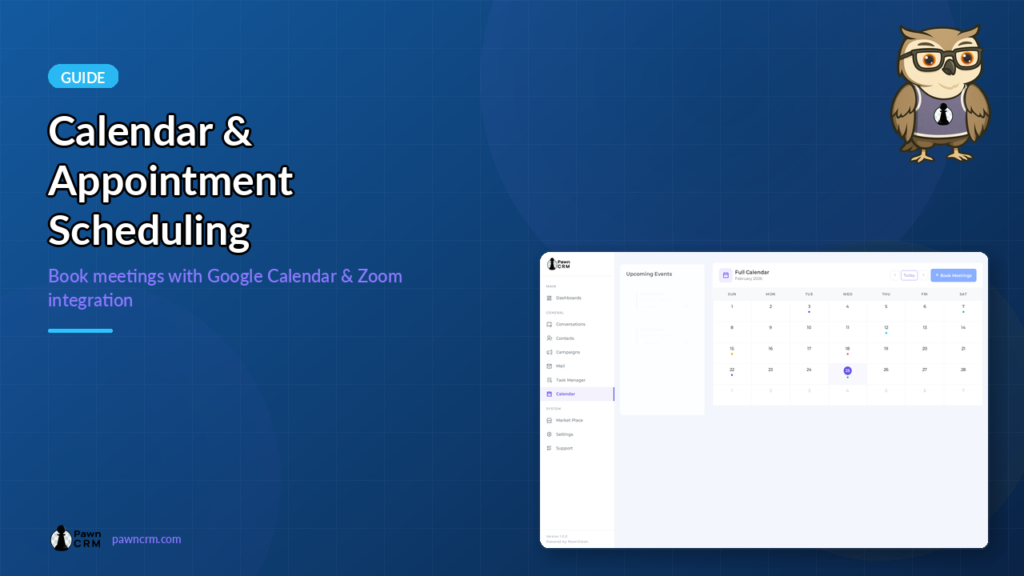
PawnCRM’s built-in calendar module helps you schedule meetings, track appointments, and stay organized. With integrations for Google Calendar and Zoom, you can manage your entire schedule from one place.
Calendar Overview

The calendar module features a two-panel layout: an upcoming events sidebar on the left and a full monthly calendar view on the right.
The upcoming events panel displays your scheduled meetings with time, title, status, and provider icons (Google Calendar or Zoom).
The main calendar shows a monthly grid with colored event dots indicating scheduled meetings on specific dates.
Booking an Appointment
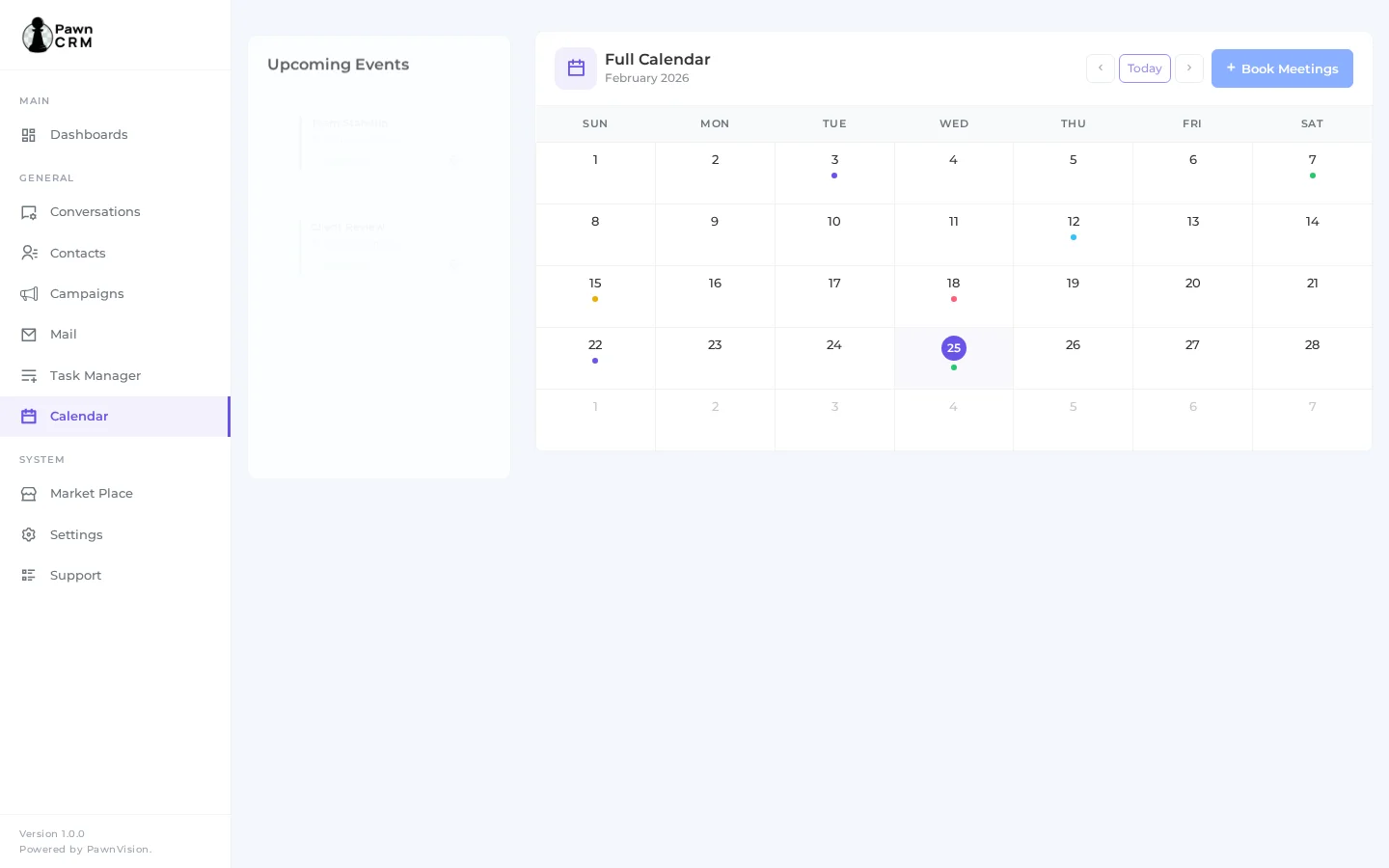
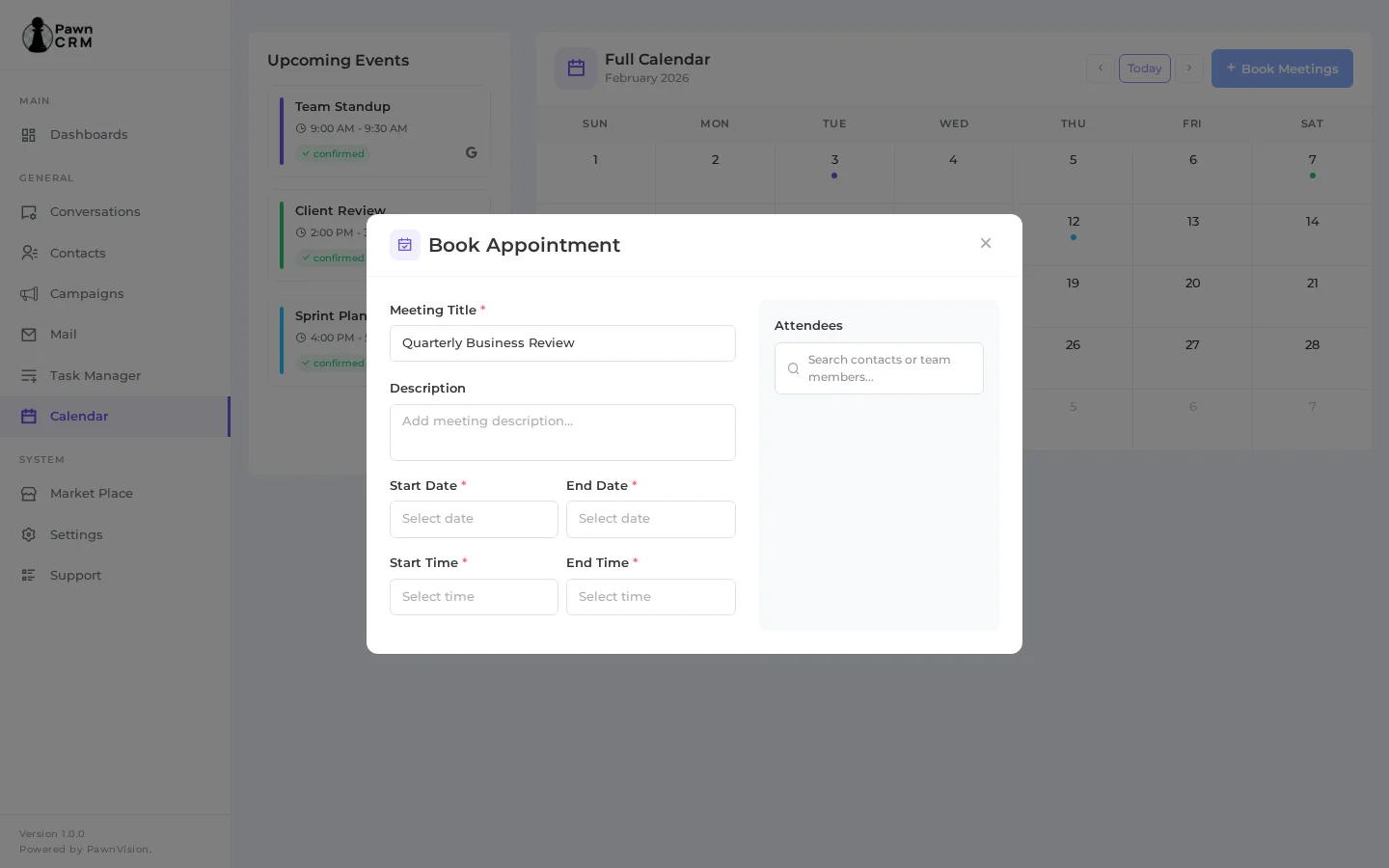
Click the “Book Meetings” button in the top-right corner to open the appointment form.
The booking modal provides a clean two-column layout: meeting details on the left and an attendees panel on the right.
Fill in the meeting title, description, start/end dates, and start/end times.
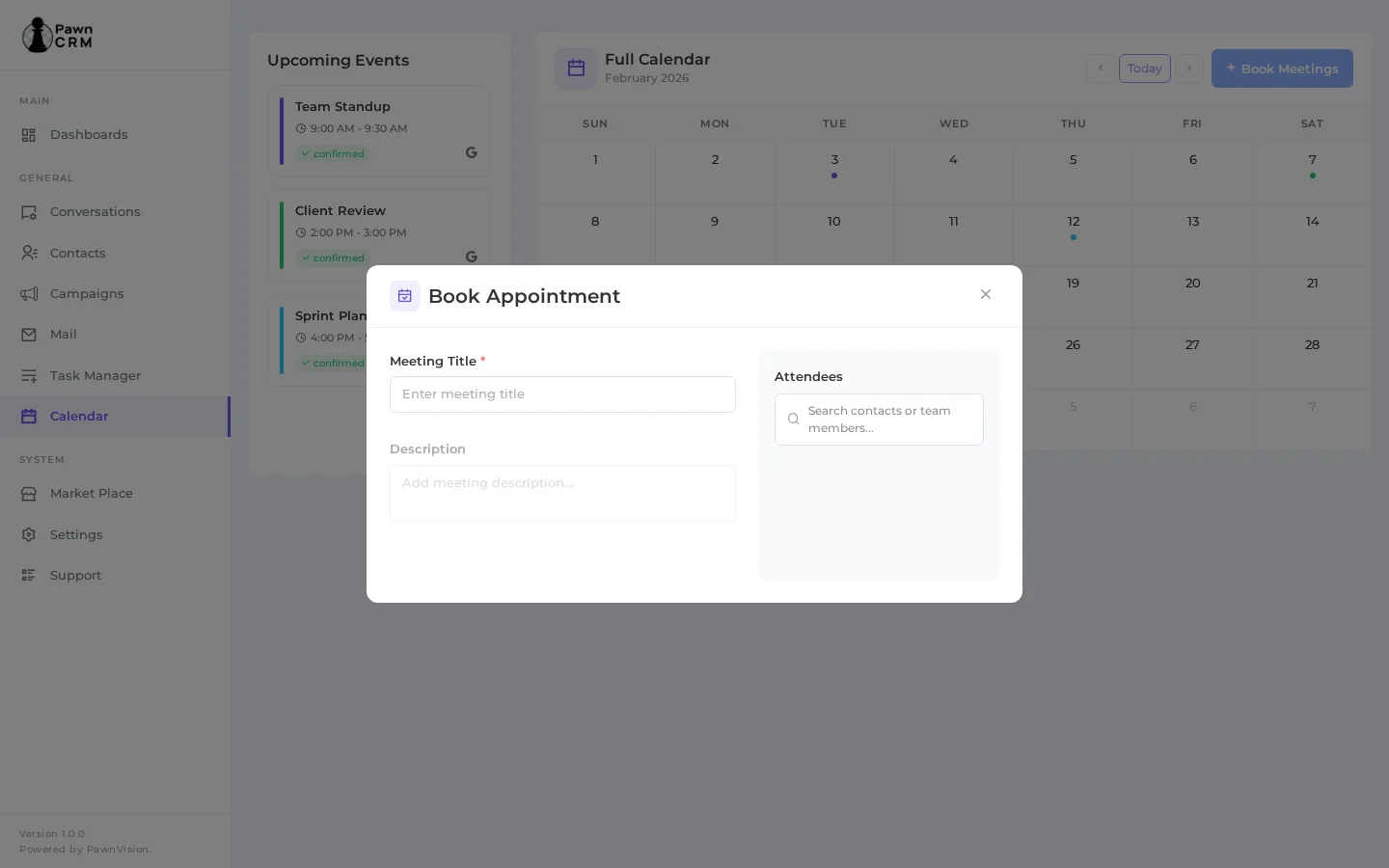
- Meeting Title – Name your appointment
- Description – Add agenda or notes
- Start/End Date – Select the meeting date range
- Start/End Time – Choose time slots
- Attendees – Search and add contacts or team members
Adding Attendees
Use the attendees panel on the right side of the booking form to search for contacts or team members.
Selected attendees appear as chips with their name, email, and avatar.
You can add both CRM contacts and internal team members to any meeting.
Viewing Event Details
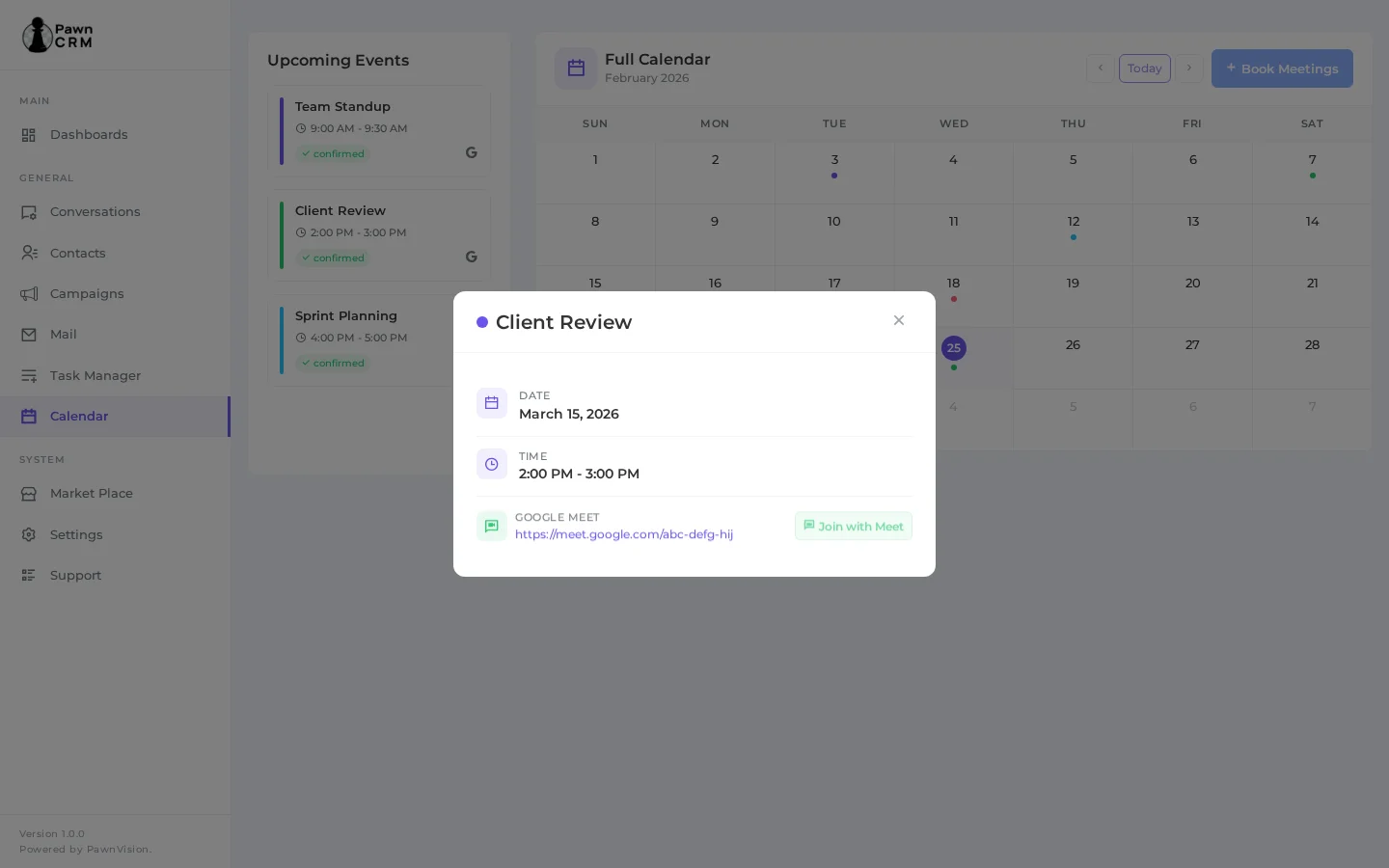
Click any event on the calendar or in the upcoming events list to view its details.
The event details popup shows the meeting title, date, time, and connected meeting platform.
For Google Meet or Zoom meetings, you get a direct “Join with Meet” or “Join with Zoom” button.
Meeting links are displayed and can be copied for sharing.
A reminder indicator shows when you will be notified before the meeting.
Managing Your Schedule
- Switch between Month, Week, and List views using the calendar controls
- Connect multiple calendar accounts (Google Calendar, Zoom) from the Market Place
- Edit or delete appointments directly from the event details popup
- Track all upcoming events at a glance in the sidebar panel
- Use the integration dropdown to filter events by connected account
PawnCRM’s calendar module brings appointment scheduling directly into your CRM workflow. By connecting your existing calendar accounts, you can book meetings with contacts, coordinate with team members, and never miss an important appointment – all without leaving the platform.
Related Articles
Continue exploring PawnCRM with these guides:
