
How to Set Up the AI Chatbot Widget in PawnCRM
PawnCRM includes a built-in AI chatbot that you can train with your own business documents and use for instant, AI-powered assistance right from the CRM. Whether your team needs quick answers about products, policies, or customer data, Pawn AI delivers them in seconds without leaving your workspace.
Accessing the Chatbot Configuration
To get started, navigate to Market Place and open the Pawn Chatbot configuration. The configuration dashboard displays an integration banner at the top along with two primary tabs: Manage for uploading training documents and adjusting settings, and Chat History for reviewing past conversations between users and the AI.
Uploading Training Documents
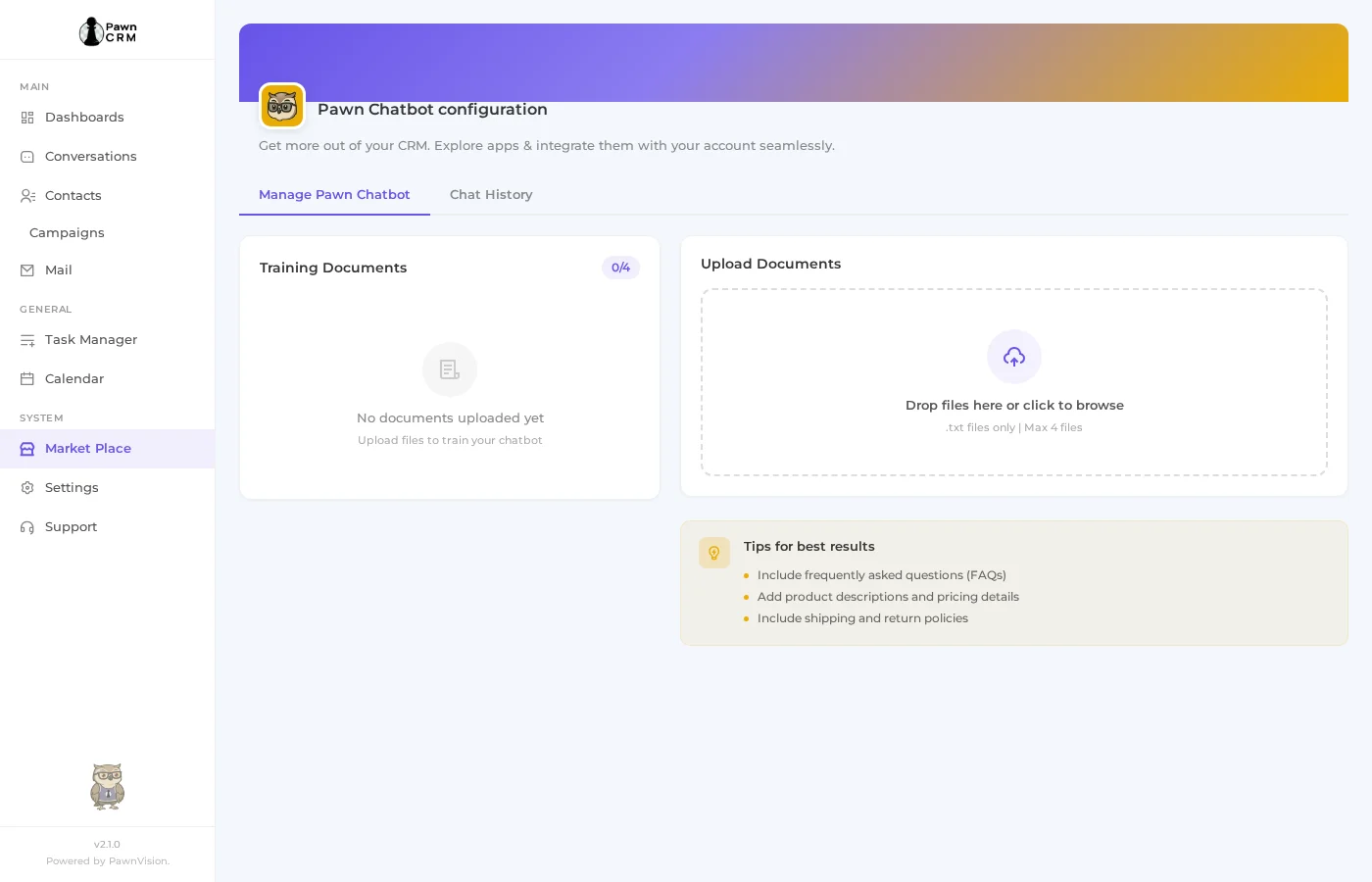
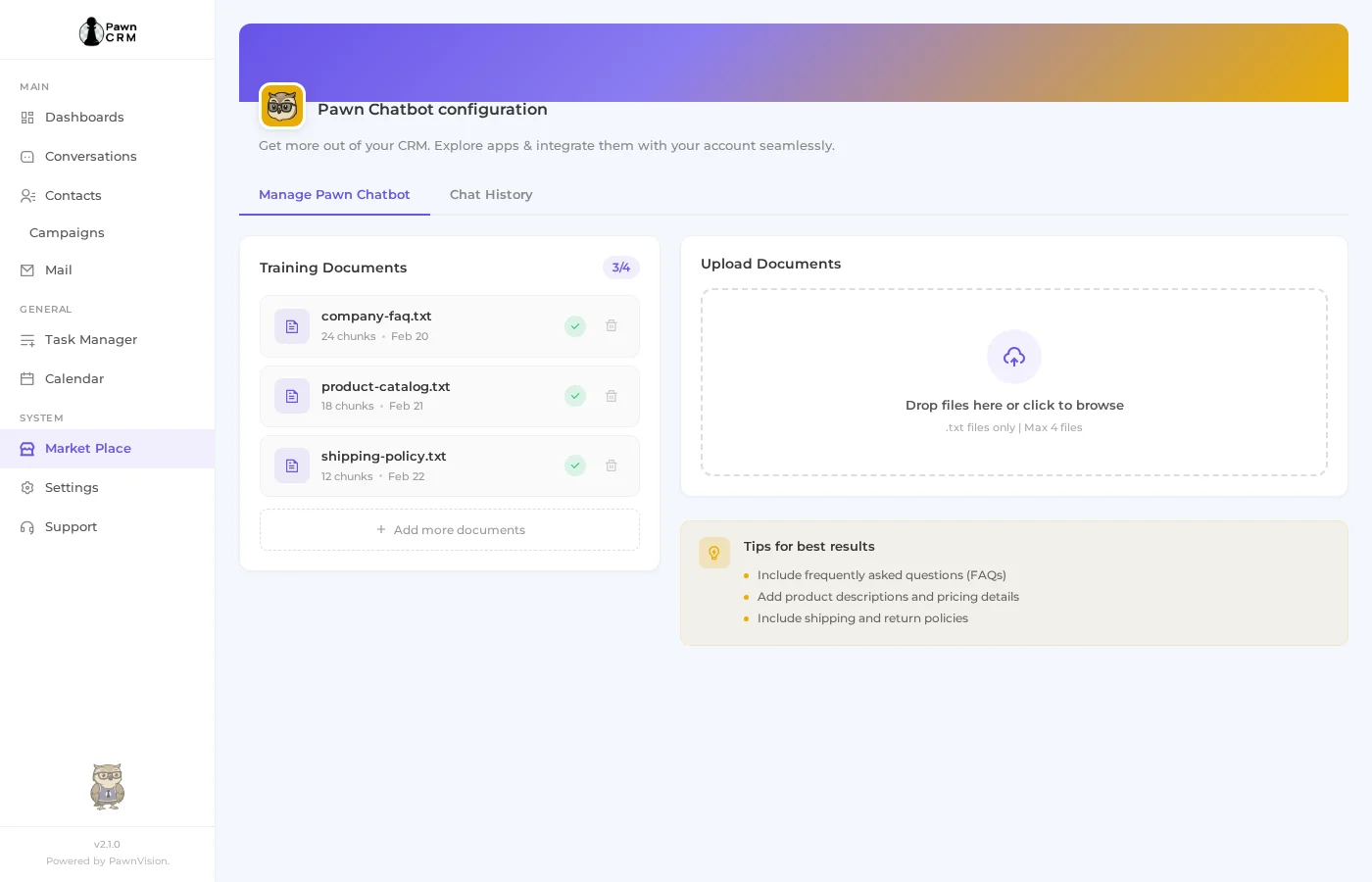

The Manage tab lets you train the chatbot with your own business documents. Simply drag and drop .txt files into the upload area or click to browse. You can upload up to 4 documents, and each one is automatically chunked and indexed so the AI can reference the right information when answering questions.
For the best results, include documents that cover your most frequently asked questions, product or service details, shipping and return policies, and any other reference material your team regularly looks up.
Viewing Chat History
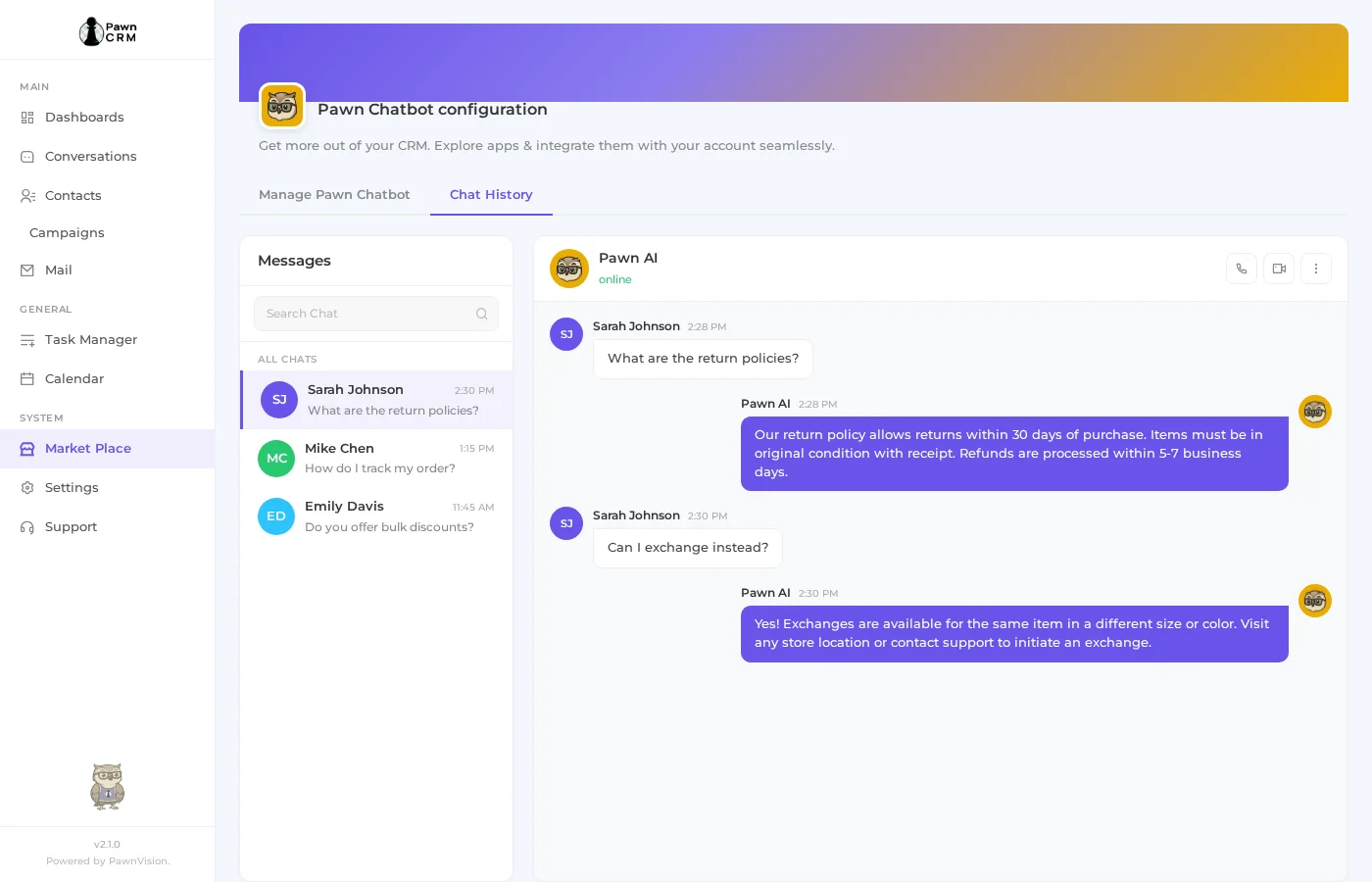
Switch to the Chat History tab to review all past conversations between your team and the AI. The interface uses a two-panel layout: a conversation list on the left side and the full message thread on the right. Each exchange shows the user question and the corresponding Pawn AI response along with timestamps, making it easy to audit answers and track how the chatbot is being used.
Using Pawn AI for Quick Assistance
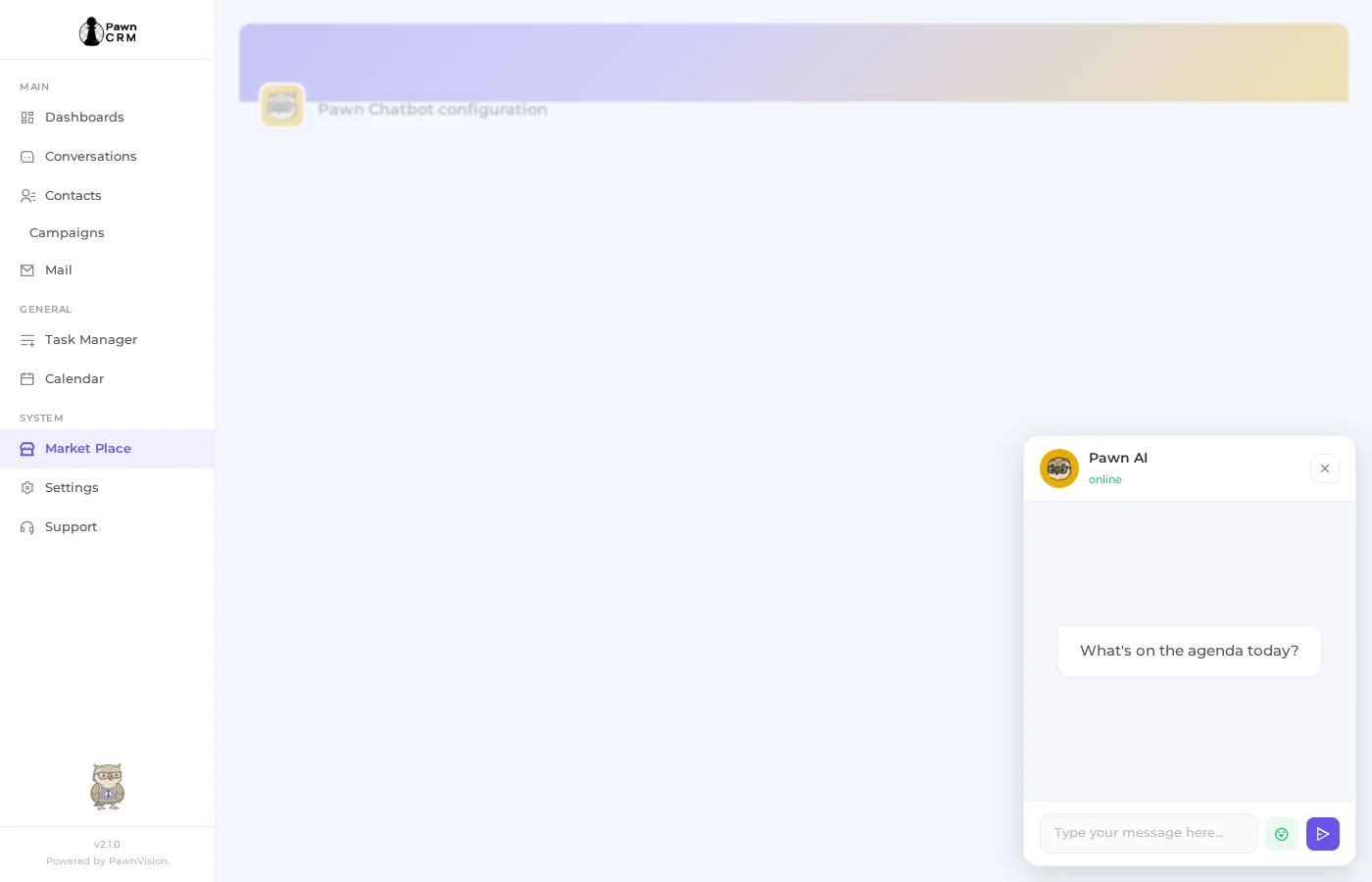
Pawn AI is available as a floating chatbot that can be accessed from anywhere in the CRM. Click the Pawn AI icon in the bottom corner of your screen to open the chatbot popup. You will be greeted with a friendly “What’s on the agenda today?” welcome message and a text input area where you can type your question.
Having a Conversation with Pawn AI
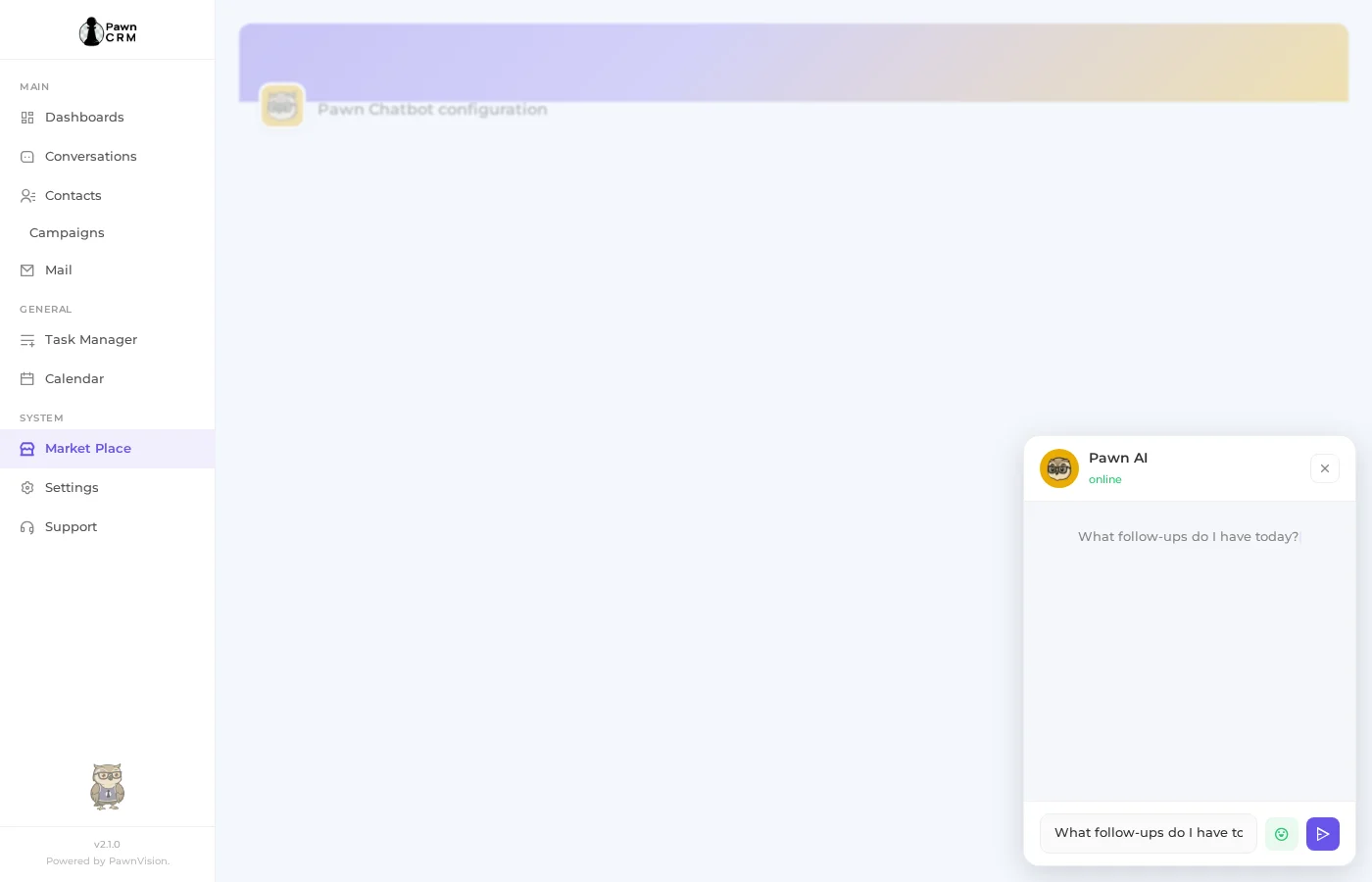
Type your question and press Enter or click the send button. The AI processes your query against your CRM data and the training documents you uploaded, then delivers a relevant response in real time. You can ask follow-up questions naturally, react with emojis, and carry on a full conversation without ever leaving the page you are working on.
Key Features at a Glance
- Train with up to 4 custom business documents
- Automatic document chunking and AI indexing
- Full conversation history with search
- Floating chatbot accessible from any CRM page
- Natural language queries about your CRM data
- Real-time AI-powered responses
PawnCRM’s AI chatbot combines document-based training with real-time CRM intelligence, giving your team instant access to answers right where they work. Set it up once, keep your documents current, and let Pawn AI handle the rest.
Related Articles
Continue exploring PawnCRM with these guides:
