
How to Create and Send SMS Campaigns in PawnCRM
SMS campaigns are one of the most effective ways to reach your contacts instantly. With PawnCRM, you can create, send, and track SMS campaigns in just a few steps directly from your CRM dashboard. Whether you’re sending appointment reminders, promotional offers, or follow-up messages, the SMS campaign builder makes the entire process simple and measurable.
This guide walks you through every step of creating an SMS campaign in PawnCRM, from selecting your audience to reviewing analytics after your messages are sent.
What You’ll Need
- A PawnCRM account with an active plan that includes SMS campaigns
- A connected Twilio or TextGrid SMS provider (configured in Settings > Integrations)
- At least one contact list with valid phone numbers
- A verified sender phone number from your SMS provider
Step 1: View Your SMS Campaigns

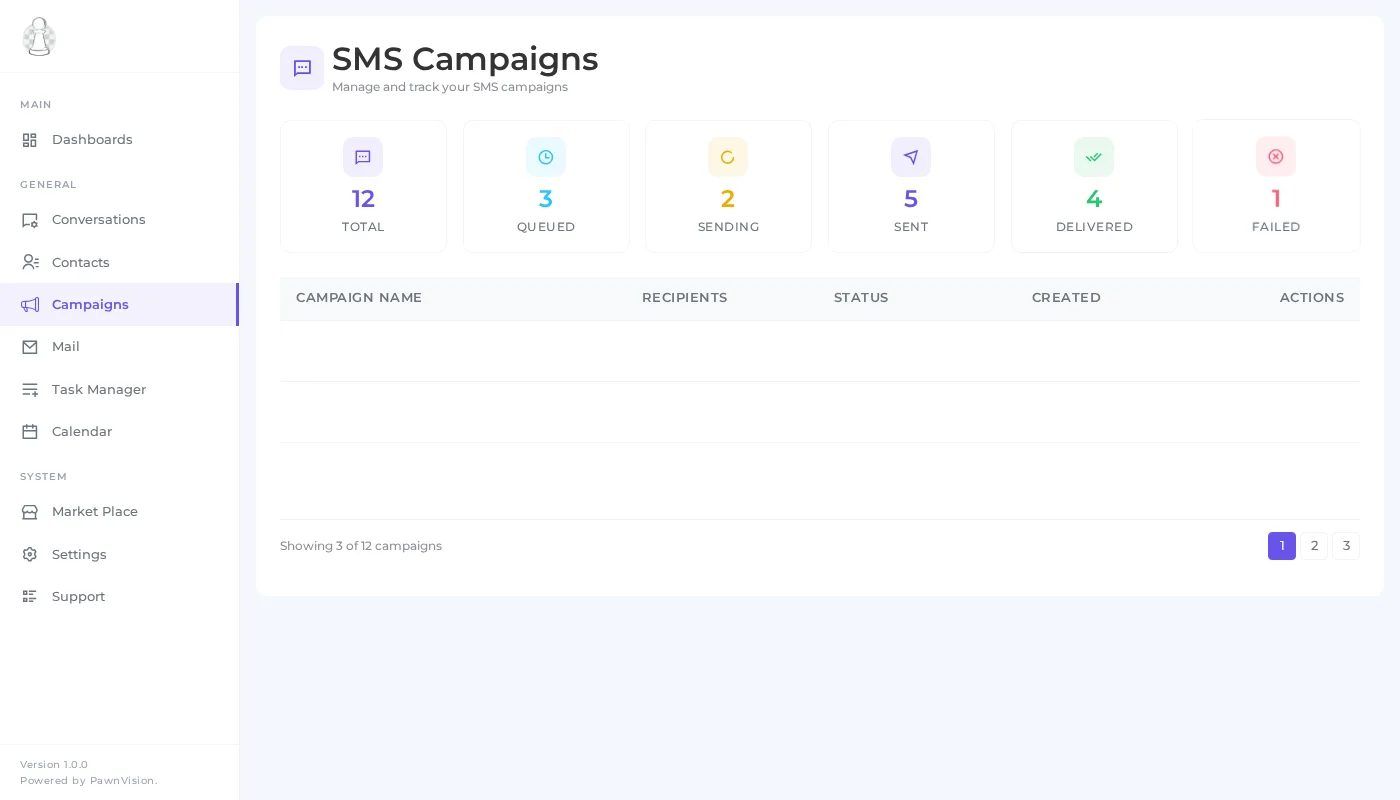
The SMS Campaigns dashboard gives you an at-a-glance view of all your campaigns. At the top, summary cards display key metrics including total campaigns, active campaigns, completed campaigns, and draft campaigns. Below the metrics, every campaign is listed with its name, status, creation date, and recipient count.
From here you can filter campaigns by status, search by name, or click “Create Campaign” to start a new one.
Step 2: Configure Campaign Details
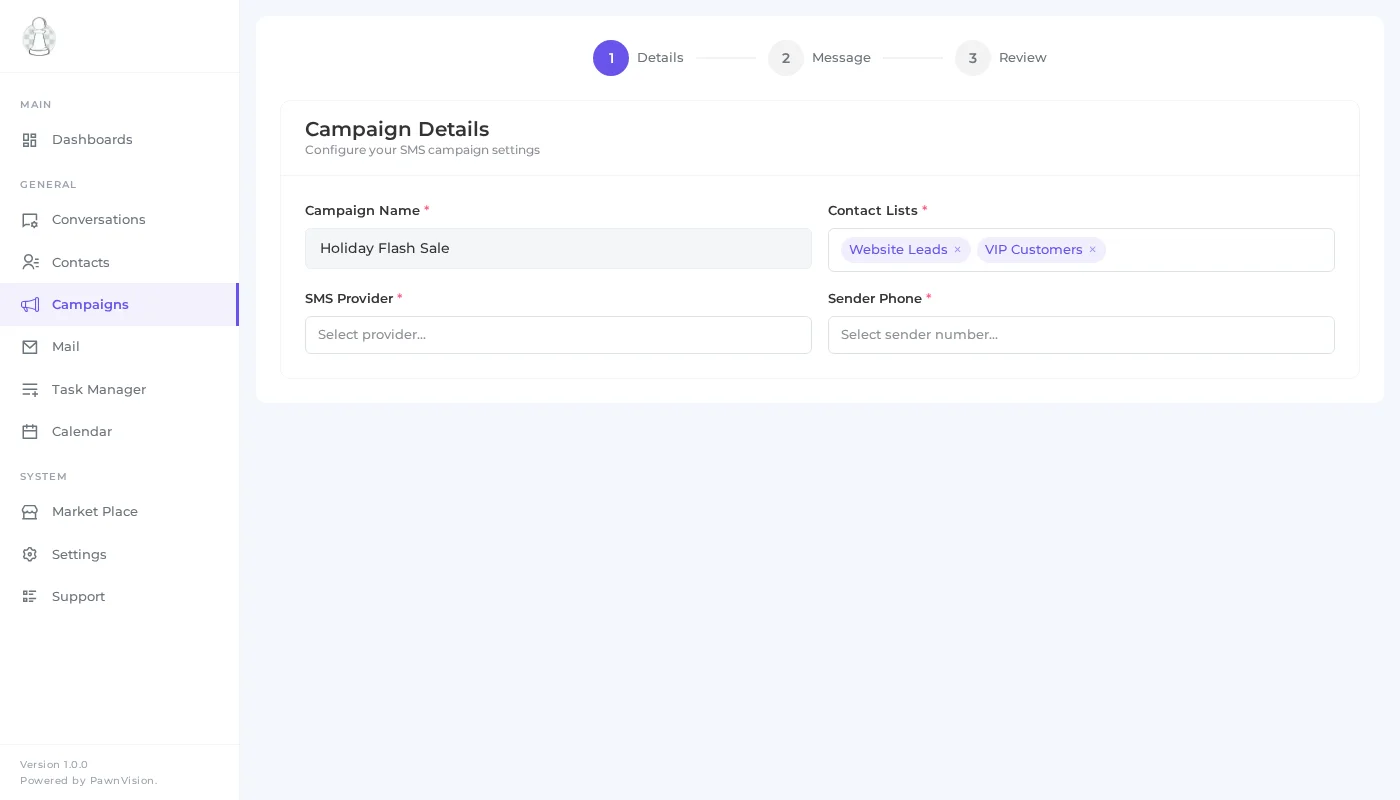
The first step in the campaign wizard is configuring your campaign details. You’ll set a campaign name that helps you identify this campaign later, select one or more contact lists to define your audience, choose your SMS provider (Twilio or TextGrid), and pick the sender phone number your recipients will see.
The contact list selector supports multiple lists, so you can combine audiences for broader reach. Your provider and sender number are pulled directly from your integration settings, ensuring messages are sent from a verified number.
Step 3: Compose Your Message
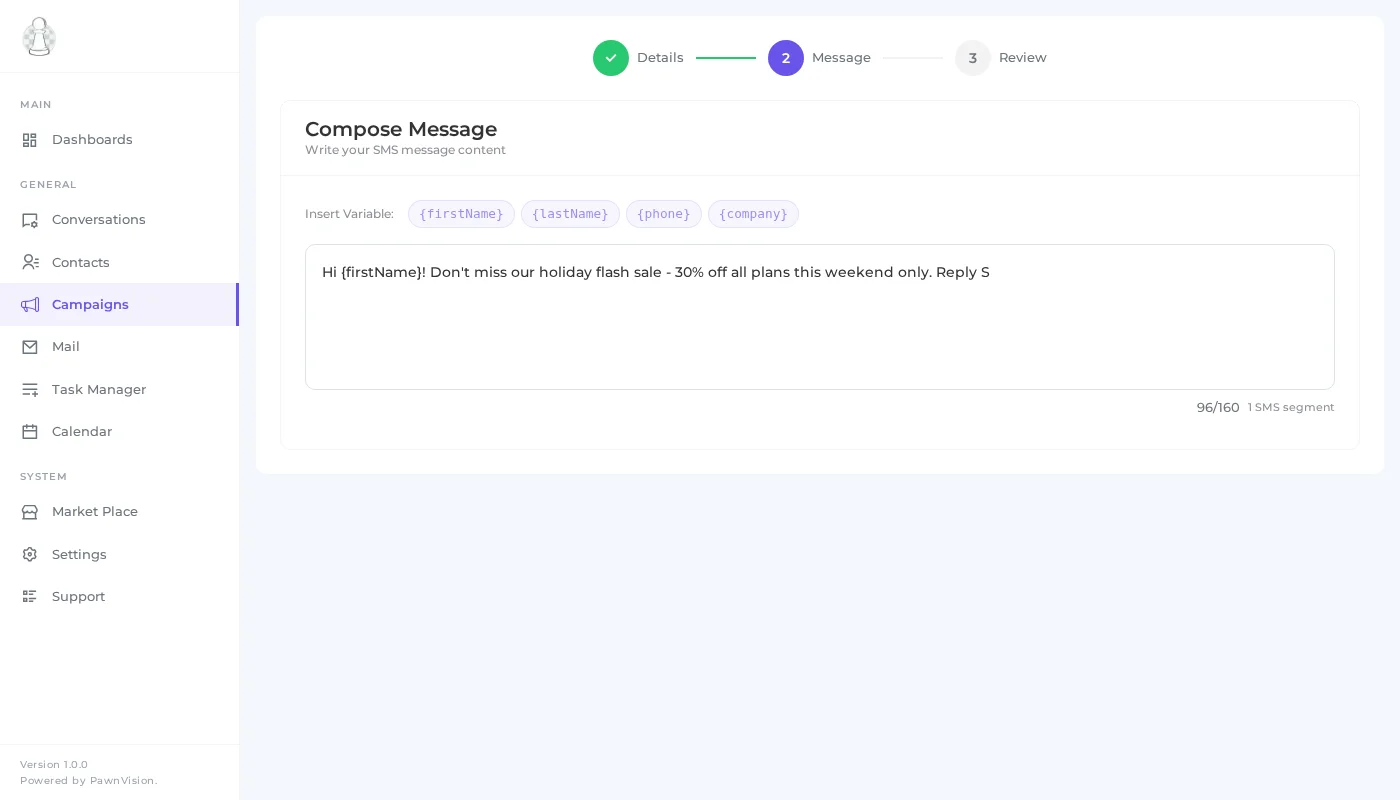
The message composer is where you write the SMS content your contacts will receive. PawnCRM includes a dynamic variable system that lets you personalize each message with contact-specific data like first name, last name, email, or phone number.
Click any variable tag to insert it into your message. The character counter at the bottom tracks your message length in real time, helping you stay within SMS segment limits. A single SMS segment supports up to 160 characters, and longer messages are automatically split into multiple segments.
Step 4: Review and Send
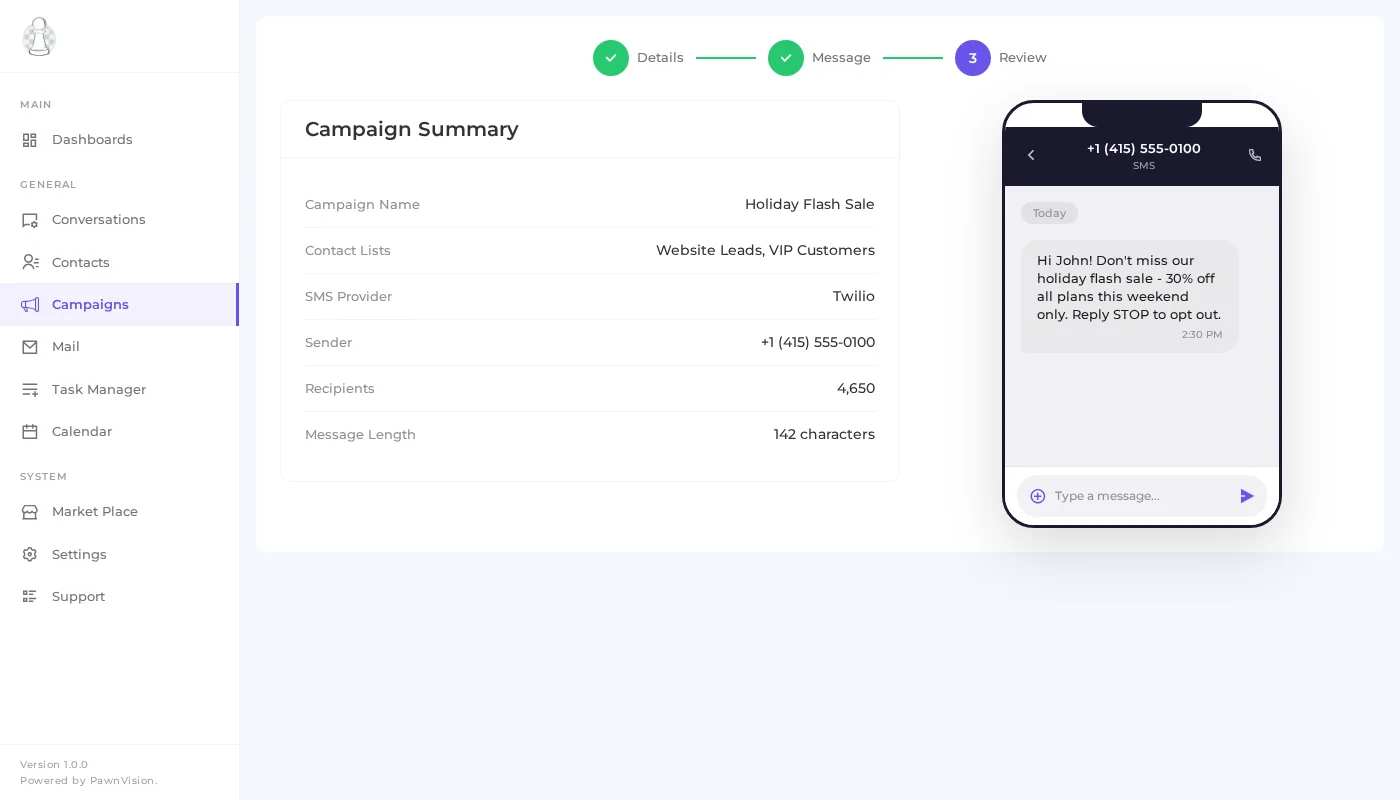
Before sending, the review screen presents a complete summary of your campaign. You’ll see the campaign name, selected contact lists, total recipient count, sender number, and the full message text. On the right side, a phone mockup shows exactly how your message will appear on a recipient’s device.
This is your final checkpoint. Double-check the recipient count, verify the message content, and confirm the sender number. When everything looks right, click “Send Campaign” to deliver your messages.
Step 5: Track Campaign Analytics
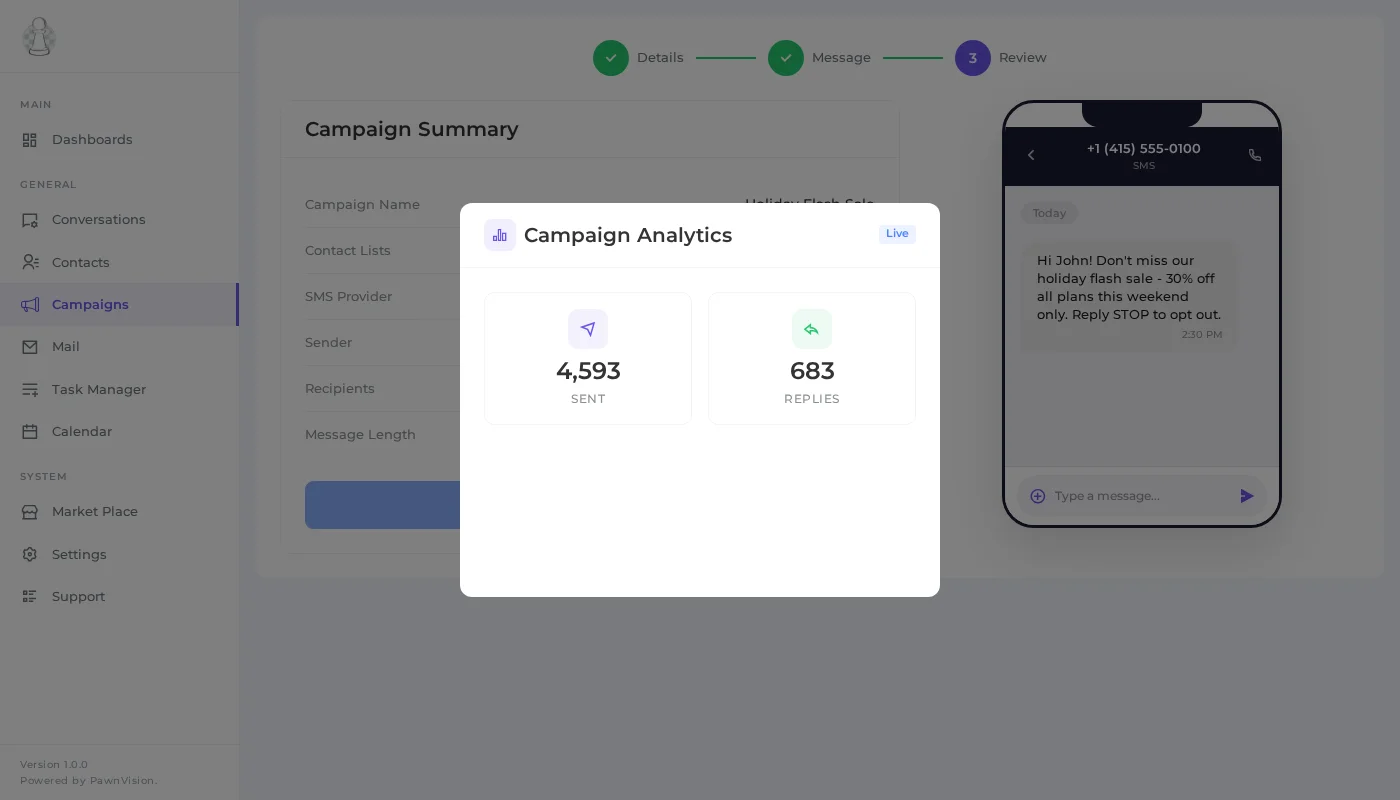
After your campaign is sent, PawnCRM provides real-time analytics so you can measure its impact. The analytics modal displays key metrics including total messages sent, messages delivered, replies received, and overall response rate.
These metrics update in real time as recipients interact with your messages. You can use this data to evaluate campaign performance, identify your most engaged contacts, and refine your messaging strategy for future campaigns.
Tips for SMS Campaign Success
- Keep messages concise – Stay under 160 characters when possible to avoid multi-segment charges and improve readability.
- Personalize with variables – Messages that include the recipient’s first name see higher engagement rates.
- Time your sends carefully – Avoid early morning or late night sends. Business hours typically yield the best response rates.
- Include a clear call to action – Tell recipients exactly what you want them to do next, whether it’s replying, clicking a link, or visiting your location.
- Test before bulk sending – Send a test campaign to yourself first to verify formatting and variable replacement.
- Monitor analytics – Check your response rates after each campaign and adjust your approach based on what works.
What Can You Do Next?
Now that you know how to create SMS campaigns, explore more PawnCRM features to get the most out of your CRM:
- Create an Email Campaign – Design and send HTML email campaigns with the drag-and-drop builder.
- Manage Your Contacts – Organize contacts, create lists, and keep your data clean.
- Chat & Messaging – Have real-time SMS conversations with individual contacts.
- Set Up Integrations – Connect Twilio, SendGrid, Mailjet, and more.
Related Articles
Continue exploring PawnCRM with these guides:
