
How to Build Landing Pages and Forms in PawnCRM
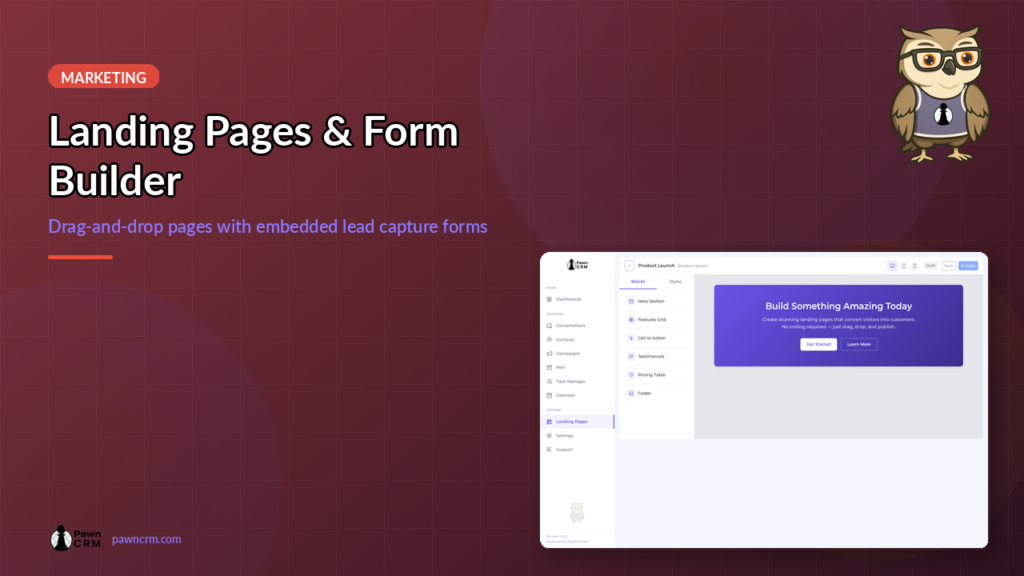
PawnCRM’s Landing Pages and Forms module gives you everything you need to build high-converting landing pages, create lead capture forms, and grow your contact list — all without writing a single line of code. From a visual drag-and-drop page builder to an embeddable form builder with CRM field mapping, your entire lead generation workflow lives inside your CRM.
Landing Pages Dashboard
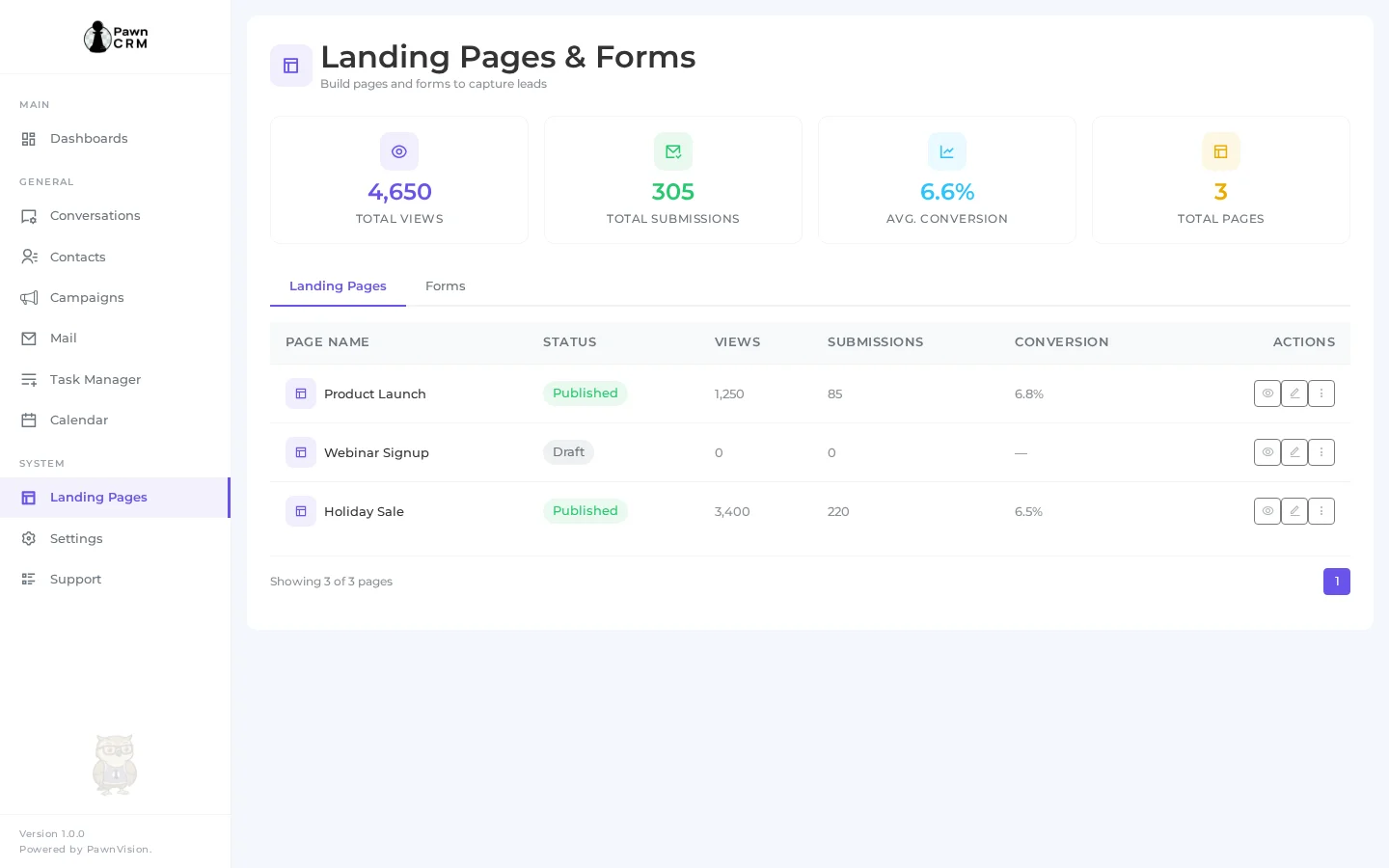

The Landing Pages dashboard is your command center for all pages and forms. At the top, four summary cards display your total page views, total form submissions, average conversion rate, and total pages at a glance. Below, the Landing Pages tab lists every page you’ve created with its name, publish status, view count, submission count, and conversion rate. Action buttons let you preview, edit, or manage each page directly from the table.
Managing Your Forms
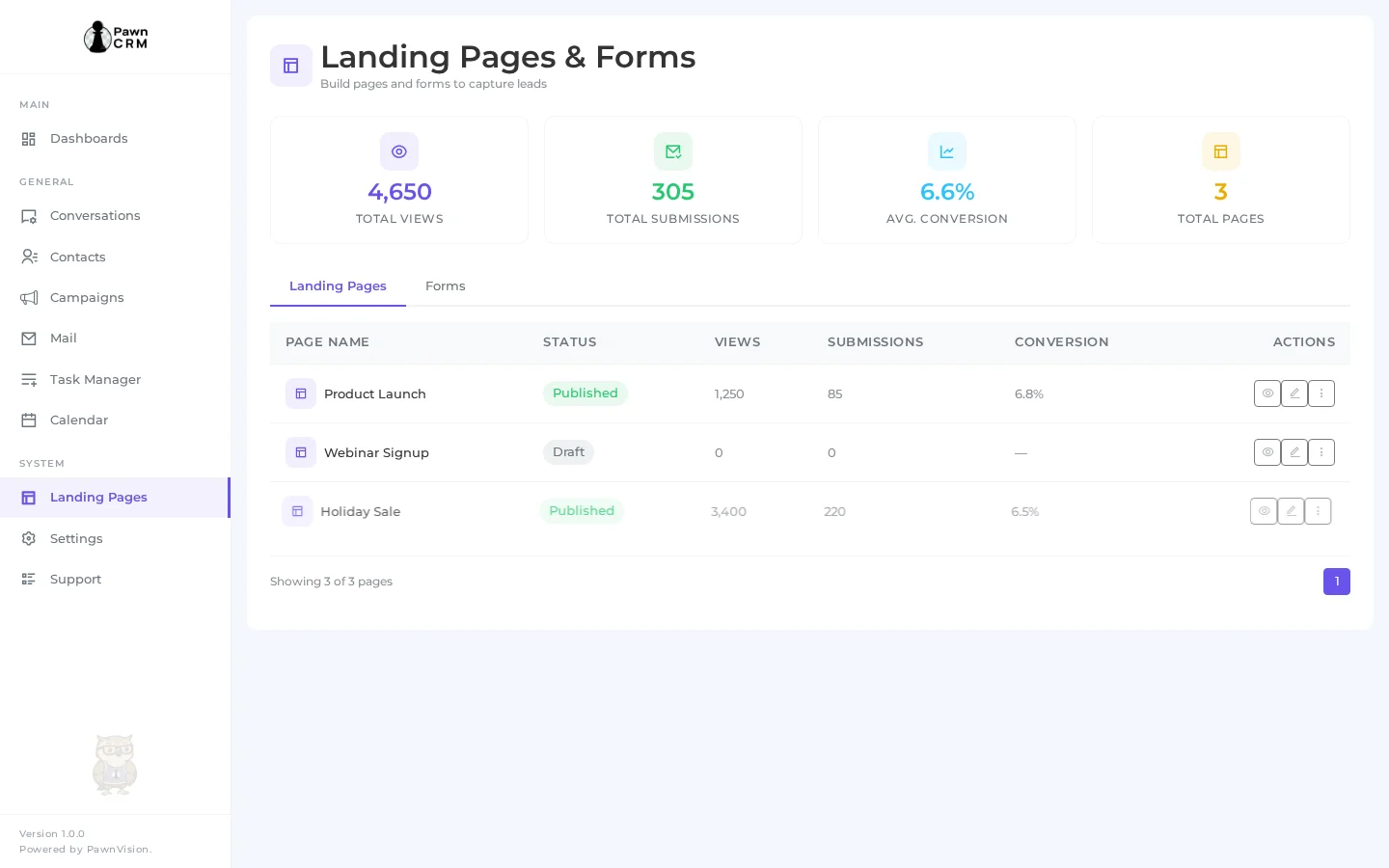
Switch to the Forms tab to see all your lead capture forms. The forms table shows each form’s name, active or inactive status, number of fields, total submissions, and assigned contact list. Each form automatically routes submissions to the right contact list in your CRM, keeping your leads organized from the moment they fill out a form. You can activate, deactivate, edit, or delete forms with quick action buttons.
Visual Page Builder
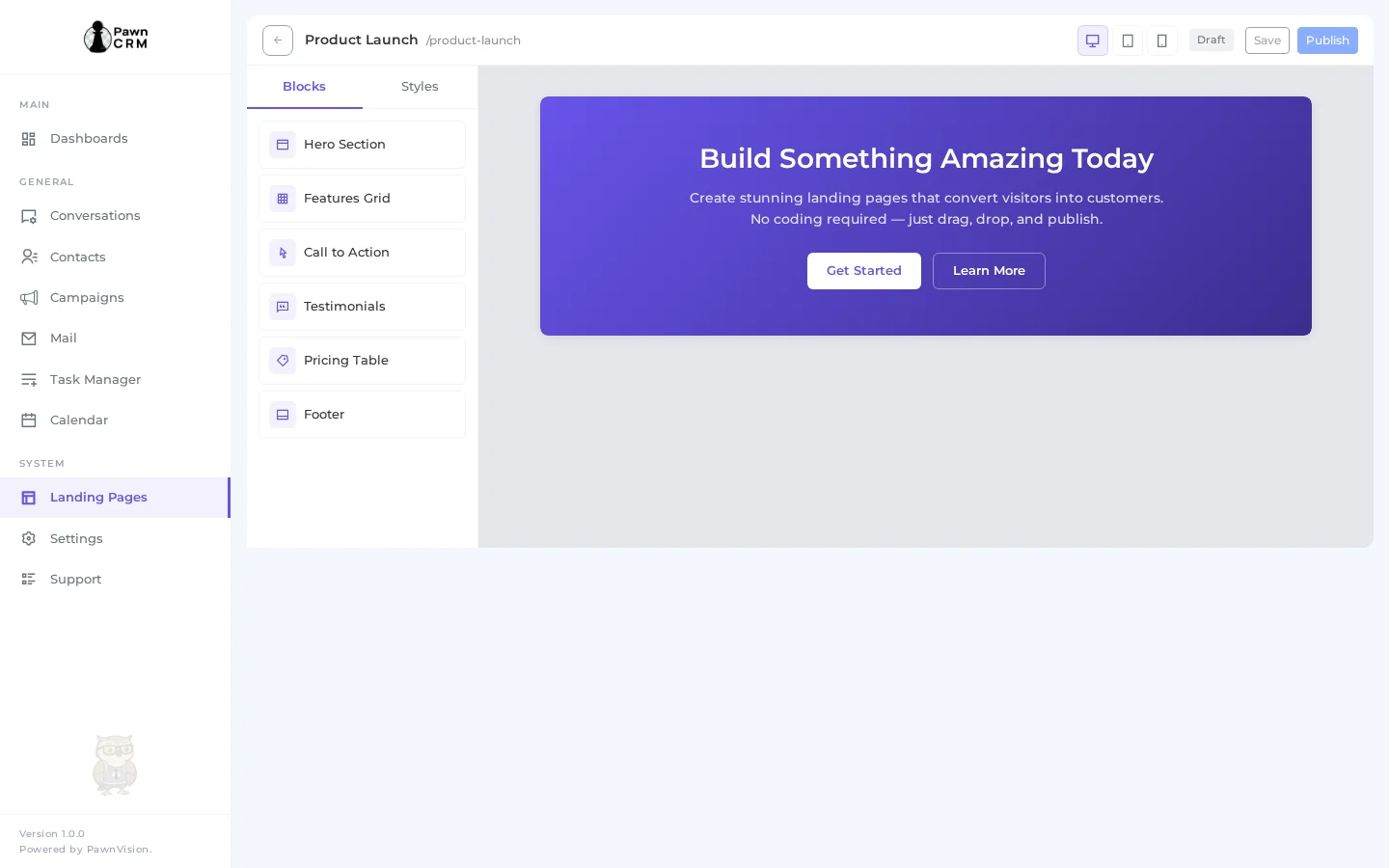
The Page Builder is a powerful visual editor powered by a drag-and-drop interface. The left panel offers pre-built content blocks — Hero Section, Features Grid, Call to Action, Testimonials, Pricing Table, and Footer — that you can drop onto your canvas. The center canvas shows a live preview of your page as you build it. The toolbar at the top lets you switch between desktop, tablet, and mobile preview modes, save your work, and publish when ready. No coding required — just drag, drop, and customize.
Drag-and-Drop Form Builder
The Form Builder makes it easy to create custom lead capture forms. The left panel offers eight field types: Text Input, Email, Phone, Text Area, Dropdown, Checkbox, Date Picker, and Number. Click any field type to add it to your form canvas. The form preview in the center shows exactly how your form will look, with support for side-by-side half-width fields and full-width fields. Each field can be configured with labels, placeholders, required validation, and mapped directly to CRM contact fields for automatic data population.
Form Settings and Embed Code
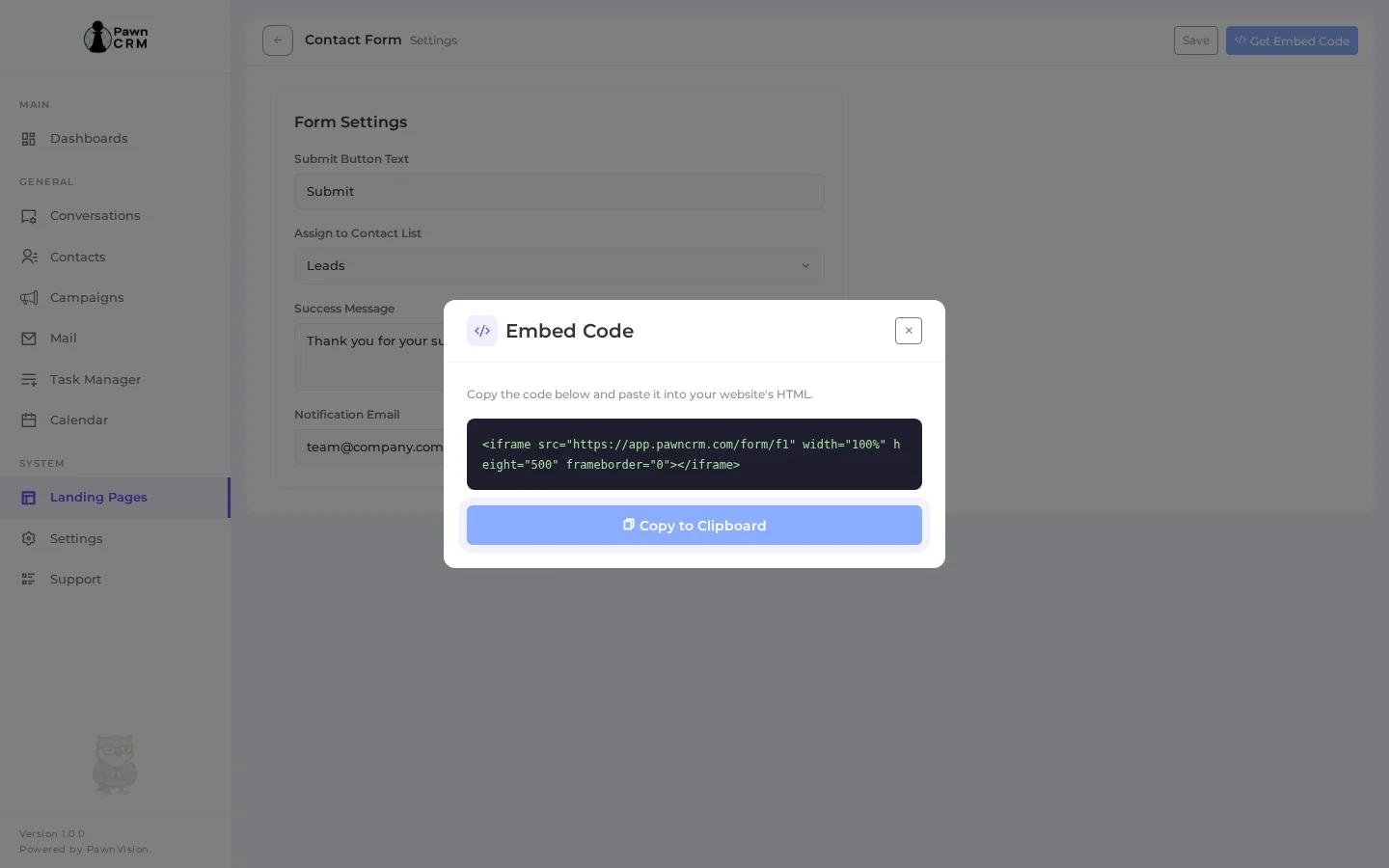
Once your form is ready, configure its settings: set the submit button text, assign submissions to a specific contact list, customize the success message, and add a notification email. When you’re done, click “Get Embed Code” to generate an iframe snippet you can paste into any website. The embed code modal provides a ready-to-copy HTML snippet that makes it easy to add your PawnCRM form to any external landing page, WordPress site, or web application.
PawnCRM’s Landing Pages and Forms module turns your CRM into a complete lead generation platform. Build beautiful landing pages with the visual editor, capture leads with custom forms, and automatically route submissions to the right contact lists. Start building your first landing page today and watch your conversion rates grow.
Related Articles
Continue exploring PawnCRM with these guides:
