
How to Use the Task Manager in PawnCRM
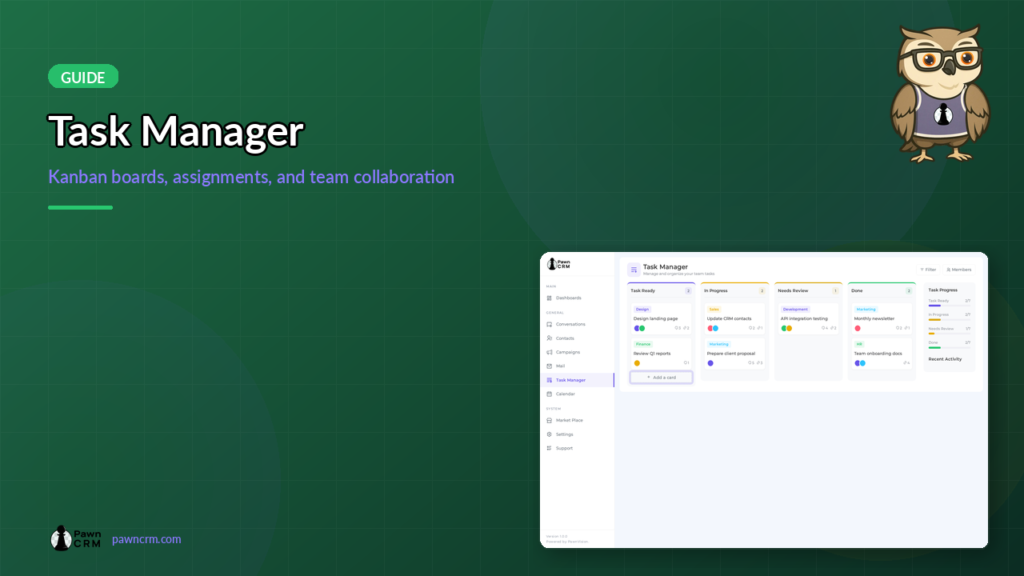
PawnCRM’s Task Manager helps your team stay organized with a visual Kanban board. Create tasks, assign team members, track progress, and collaborate with comments — all within your CRM workflow.

Kanban Board Overview
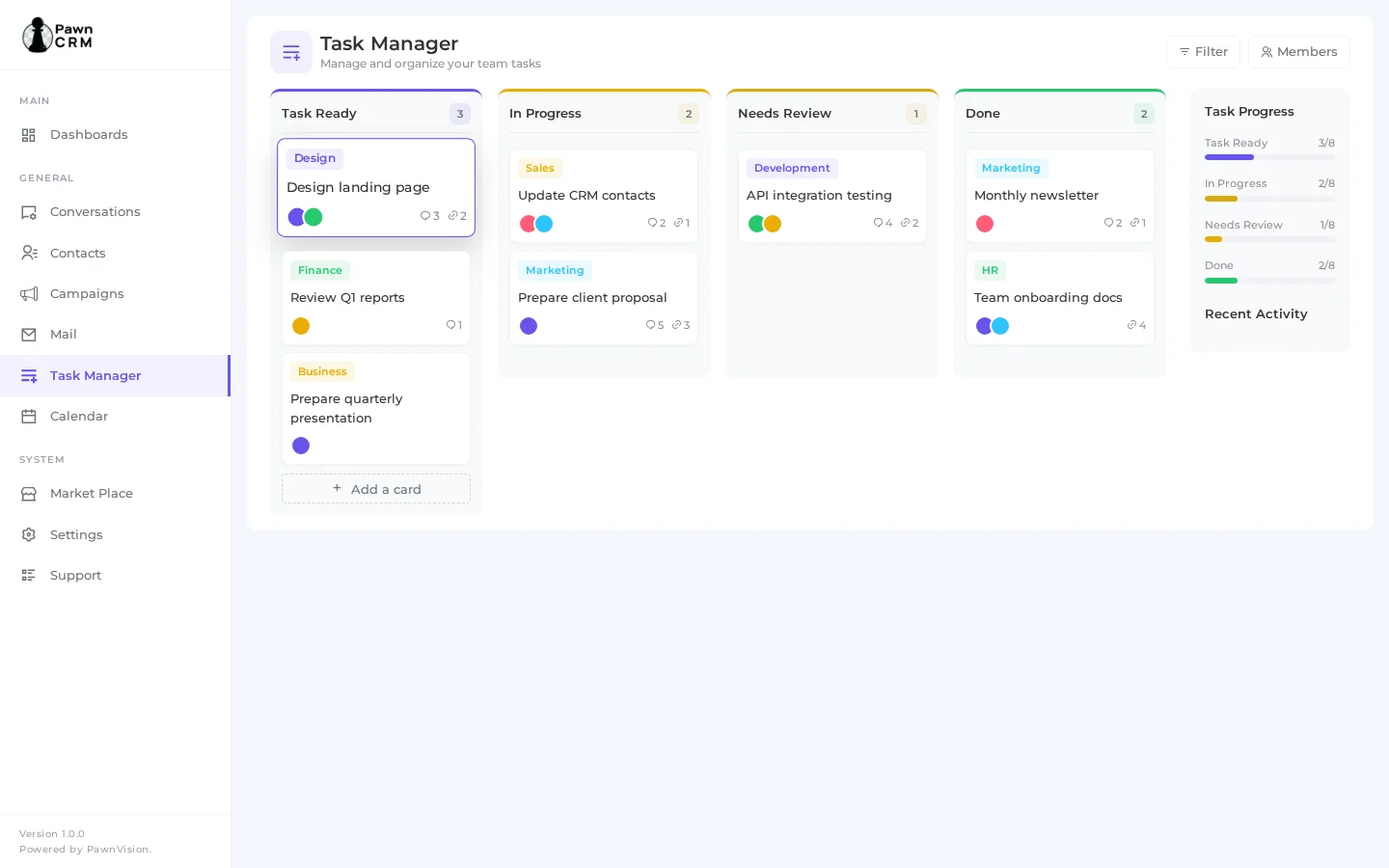
The Task Manager uses a Kanban-style board with four columns: Task Ready, In Progress, Needs Review, and Done.
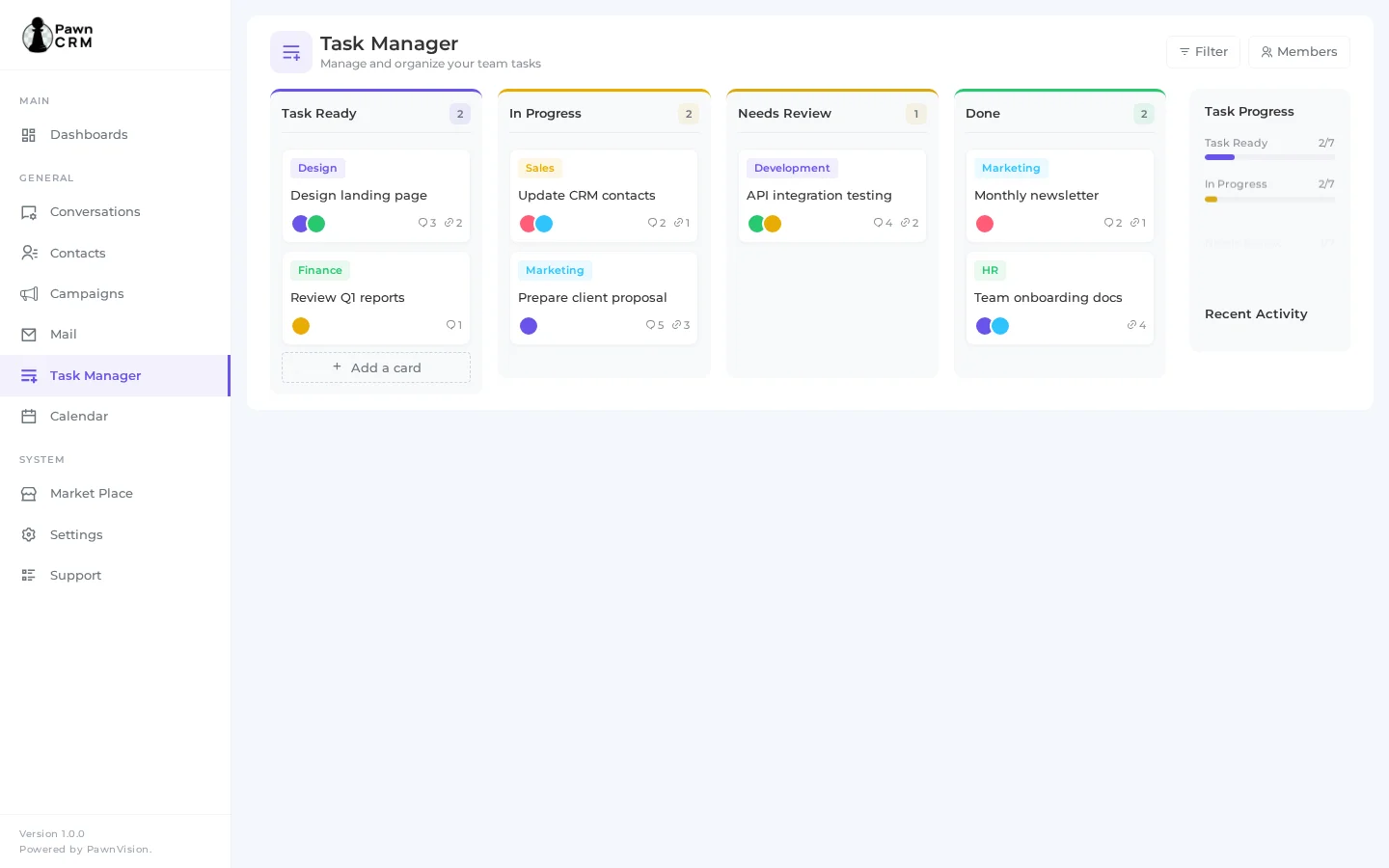
Each task card displays the task title, tag (color-coded by category), assigned team members with avatar icons, and counts for comments and attachments.
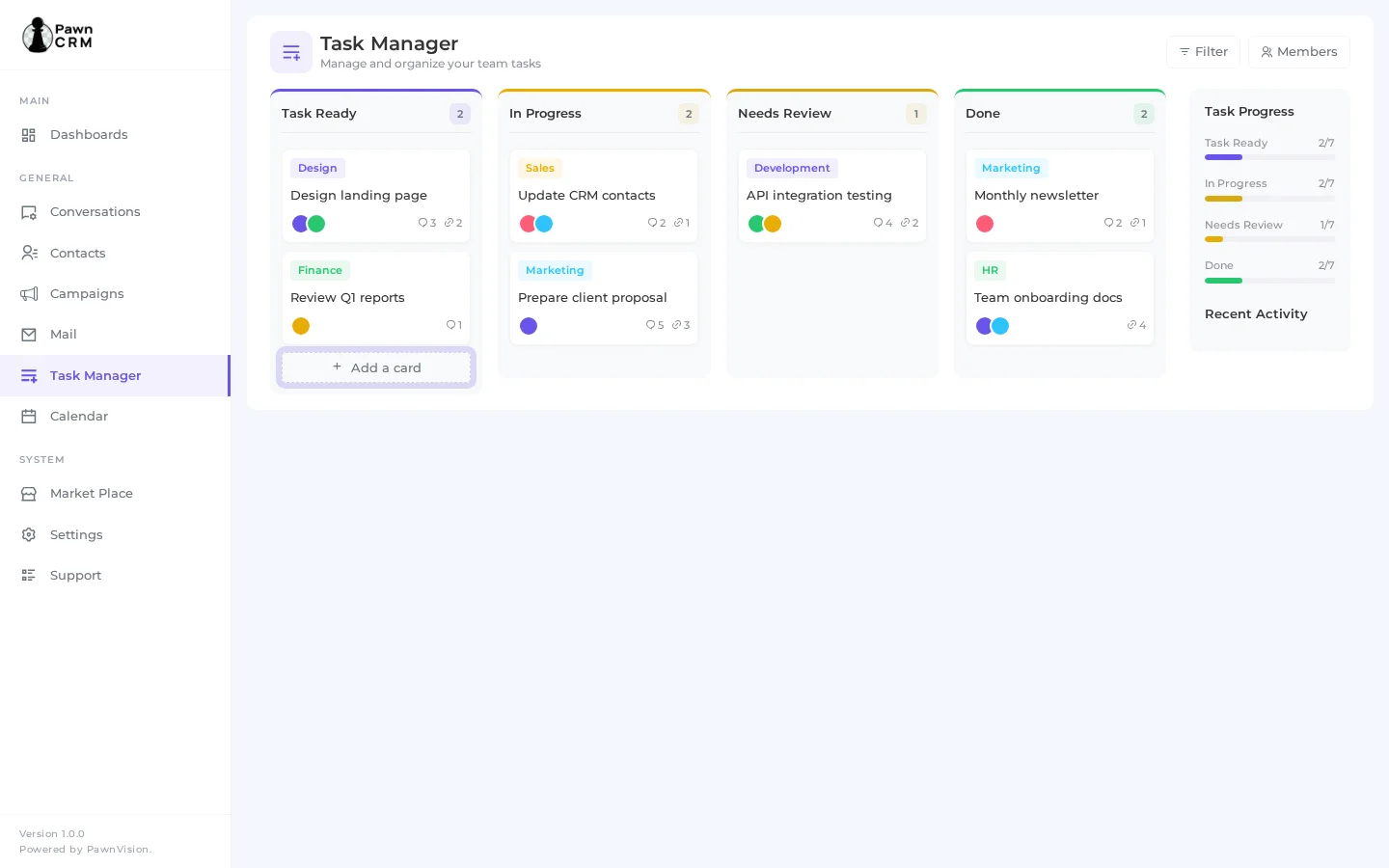
A progress sidebar on the right shows real-time progress bars for each status column, giving you an instant overview of your team’s workload.
Creating Tasks
Click the “Add a card” button at the bottom of any column to create a new task.
A text input appears where you can type the task title, then click “Create” to add it to the board.
New tasks are automatically assigned to the column where you created them.
Tags can be assigned to categorize tasks by department or type (Design, Sales, Marketing, Finance, etc.).
Task Details and Collaboration
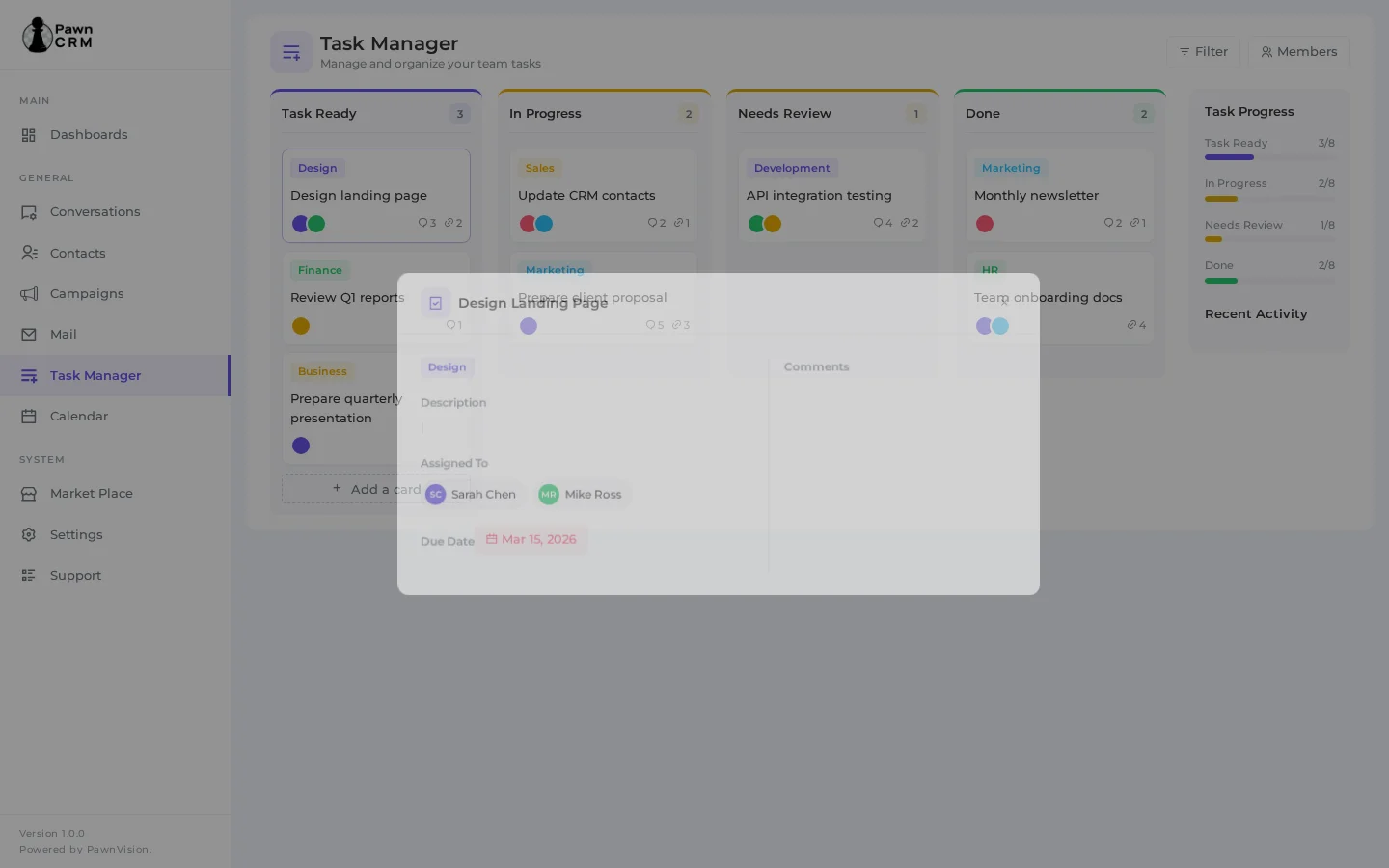
Click any task card to open the full task detail modal.
The modal provides a two-column layout: task details on the left and a comments panel on the right.
- Task title and category tag
- Description field for detailed task information
- Assigned team members with avatars and names
- Due date with visual indicator
- Comments section for team collaboration
- File attachments support (up to 5 images)
Moving Tasks Between Columns
Drag and drop task cards between columns to update their status.
Moving a task from “Task Ready” to “In Progress” automatically updates the progress bars in the sidebar.
You can also change a task’s status from within the task detail modal using the status dropdown.
The progress sidebar updates in real-time as tasks move through your workflow.
Tracking Progress
- Progress bars show the ratio of tasks in each status column
- Recent Activity feed displays the latest task updates with timestamps
- Activity icons are color-coded by status (blue for ready, orange for in progress, yellow for review, green for done)
- Filter tasks by team member using the Members button
- Use tags to organize tasks by department, project, or priority
PawnCRM’s Task Manager transforms how your team handles work. The visual Kanban board makes it easy to see what everyone is working on, while the detail modal ensures nothing falls through the cracks. Combined with real-time progress tracking and team collaboration features, it keeps your entire workflow organized and transparent.
Related Articles
Continue exploring PawnCRM with these guides:
